How to Receive and Send Voice Messages with an App
Announcements
Voice messaging in mobile apps has transformed the way you communicate day-to-day. These features allow you to send and receive audios quickly and personally, replacing the need for typing in many scenarios. If you are looking to master this functionality safely, this complete guide will help you make the most of the benefits of this technology.
Voice messages work like short audio recordings you send through communication applications. Unlike phone calls, they do not require the recipient to be available at the same time, working asynchronously.You record when you have time, and the contact listens when you prefer, keeping the conversation fluid and natural.
Announcements
Understanding Voice Messages in Communication Apps
Voice messages represent a perfect middle ground between text messages and voice calls. You can express emotions, tone and context much better than in simple text, but without the pressure of a real-time synchronous conversation.Many popular applications include this feature as standard functionality, making it available in an integrated way in the chat interface.
When you record a voice message, the application compresses the audio file and sends it through the platform servers. Depending on the speed of your internet connection, the audio is delivered in seconds or a few minutes. The receiver can play as many times as you want, pause, rewind or advance as needed.
Advantages of Using Voice Messages
Voice communication saves your time significantly, especially when you need to convey long or complex messages. Instead of typing for minutes, you record in seconds, maintaining the naturalness of the conversation. This approach reduces misinterpretation, since the tone of voice makes clear your intention when speaking.
Another important benefit is accessibility for people with visual or motor difficulties. Voice messages eliminate the barrier of typing and allow more people to participate in conversations comfortably.In addition, in environments where you can not type, such as while driving or performing other activities, sending an audio is the safest and most practical solution.
Voice message communication also creates a more personal auditory record of the conversation.You can perceive the emotional state of your contact, laughter, hesitations and other nuances that the text does not convey. This strengthens relationships, whether professional or personal, making interactions more authentic and meaningful.
Downloading and Installing the Application
The first step to start using voice messages is to choose an application that meets your needs. Most communication apps like WhatsApp, Telegram, Signal and Messenger offer this feature natively, at no additional cost. You do not need to download any separate program, as the functionality comes included in the main application.
» Private Messages! «AndroidTo install the app on your device, go to the App Store if you use iOS or the Google Play Store if you have an Android smartphone. Search for the name of the desired app, click “Install” and wait for the download and installation to complete. After completion, you will receive a notification and can open the app immediately, registering or logging in as needed.
During installation, the app will ask for permissions to access your microphone, contacts, and storage. Grant these permissions so that the voice messaging functionality works properly. If you refuse any of these permissions, the app will not be able to record or send audios, limiting its capabilities.
Step by Step to Record a Voice Message
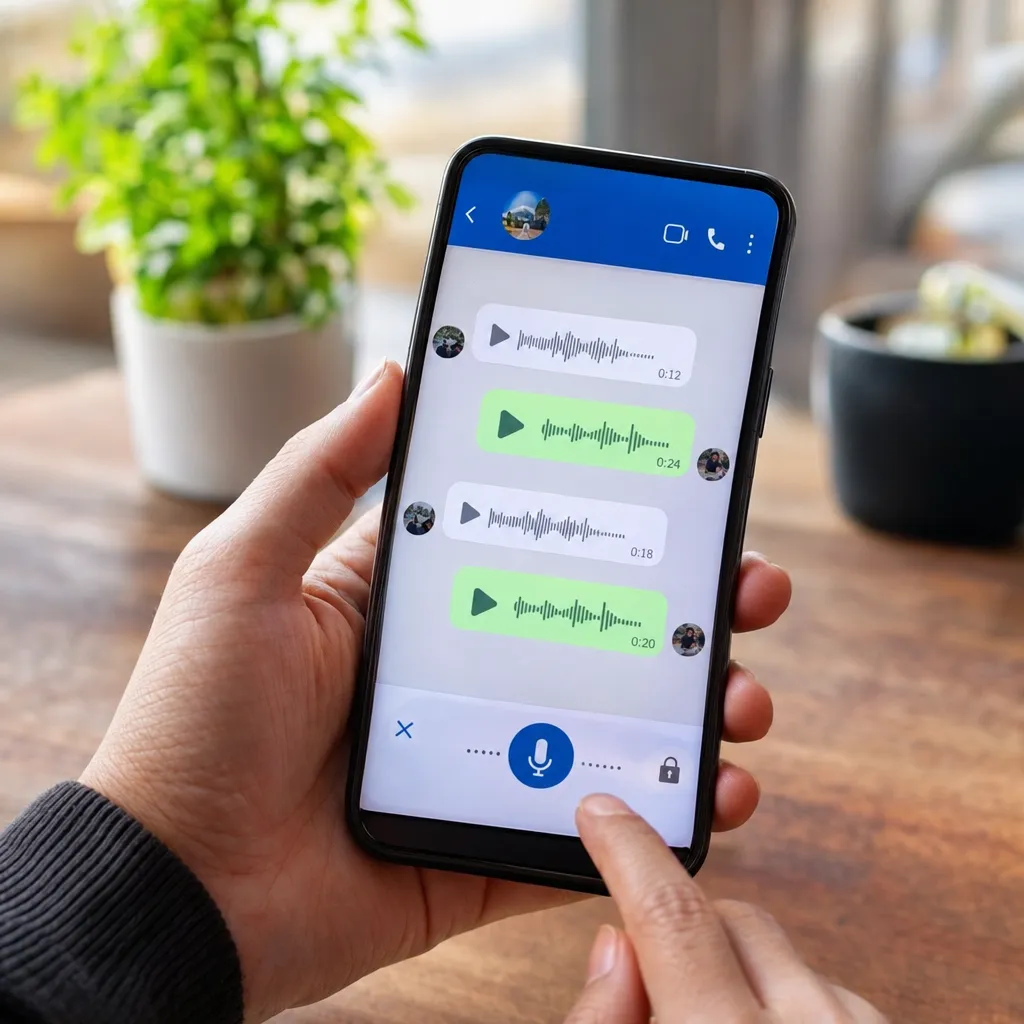
After installing and configuring the application, recording a voice message is extremely simple. Open the application and select the conversation or contact with whom you want to communicate by audio. At the bottom of the screen, you will see a microphone icon or a specific button for audio recording, usually represented by a circle symbol.
Press and hold the microphone button while speaking clearly towards your device. Keep the phone in a comfortable position, usually near your mouth, without covering the microphone. Speak in natural tone, as if you were talking in person, and avoid yelling or talking too low to ensure good audio quality.
When you’re done talking, release the microphone button to finish recording. Depending on the app, you may have the option to review the audio before sending, listening to it to check that it’s okay.If you’re not satisfied, delete and record again. Some apps allow you to edit the message or add voice effects, offering customization options.
Sending Audios to Your Contacts
After recording your voice message, the next step is to send to your contact. After releasing the recording button, the application displays a send button, usually represented by an arrow or airplane icon. Click this button to send the audio over the internet to the selected person.
The sending time depends on your internet connection. If you are connected to a fast Wi-Fi network, the message is delivered in seconds. With a mobile connection, the sending may take a little longer, but usually does not exceed a few minutes. The application will notify you when the message has been delivered and read by the receiver, depending on the privacy settings.
You can also send voice messages to contact groups in the same app. The functionality is identical, but the audio will be received by all group members simultaneously. Remember that voice messages for groups tend to be shorter and more objective, as more people will listen and need their time to process the message.
Security Features Available
The security of your voice messages depends on the application you choose to use. Platforms such as Signal and WhatsApp implement end-to-end encryption, ensuring that only you and the receiver can hear the audio.This means that no one else, not even the company’s servers, can access the content of your message.
In addition to encryption, you must enable biometric authentication or password in your app to add an extra layer of protection. This way, if someone gains access to your phone, they will still need your fingerprint or code to access conversations and voice messages. Also set up the option to automatically delete messages after a certain period, if the app offers this feature.
Some apps allow you to turn off screenshots or screen recordings in sensitive conversations. This feature prevents the receiver from capturing images or videos of your conversation without you knowing. Explore your app’s privacy settings and enable all available protections to ensure your communications remain confidential and secure.
Careful Using Voice Messages
Although voice messages are convenient, you should be careful when recording and sending audios in public places.People around you can hear what you are saying, compromising your privacy.If you are in a shared environment like public transport or workspace, look for a more private location before recording sensitive messages.
It is also important to check the size of audio files before sending to contacts with mobile data limit.Long voice messages consume more internet bandwidth and can quickly exhaust someone’s data plan. Keep your audios concise and objective, recording only what is needed to transmit your message efficiently.
Never record voice messages while driving, even if it seems easy.The distraction of talking to the phone increases the risk of accidents, regardless of whether you are generating an audio document.Park in a safe place if you need to send important audio during a trip, always prioritizing your safety and that of other people.
Tips to Improve the Quality of Your Audios
The audio quality of your voice messages depends on several factors that you can control. First, make sure your device’s microphone is clean and unobstructed, removing dust or debris that may affect the recording. A dirty microphone produces muffled and distorted sounds, making it difficult for the receiver to understand your message.
Choose quiet environments to record your voice messages, avoiding places with a lot of background noise like busy streets or places with loud music. If you are in a noisy environment, look for a quieter place or wait for a better time to record. Excessive noise impairs the intelligibility of the audio, forcing the receiver to listen several times to understand your message.
Speak in a clear and moderate tone, articulating the words well to ensure that everything is understood perfectly. Avoid screaming or whispering, as both approaches result in poor quality audio. Keep the device at a comfortable distance from the mouth, usually between 10 to 20 centimeters, to capture your voice clearly and evenly without distortions.
If you’re using headphones with a microphone, consider using this option instead of the phone’s built-in microphone, as many headphones offer better audio capture quality. Test your setup by recording some short messages and listening to them before sending to contacts. This practice helps you identify audio issues and make necessary adjustments before sharing messages.