How to Find Wi-Fi Networks Available on your Phone
Announcements
Finding Wi-Fi networks available on your mobile phone is a task you do every day, but you do not always know how to make the most of this functionality. Whether at home, at work, in a cafe or at an airport, accessing the internet without consuming mobile data is essential to save and maintain the quality of your service. This practical guide will show you the best ways to locate, connect and manage Wi-Fi networks from your mobile device.
Wi-Fi technology has evolved a lot in recent years, and nowadays finding an available network is easier than ever. You can use the native tools of your smartphone, specialized applications or even advanced techniques to locate hidden networks and analyze the quality of the connection. Knowing these options helps you make better decisions about which network to use in each situation, as well as protecting your personal data against unsafe connections.
Using Your Mobile Phone’s Native Settings
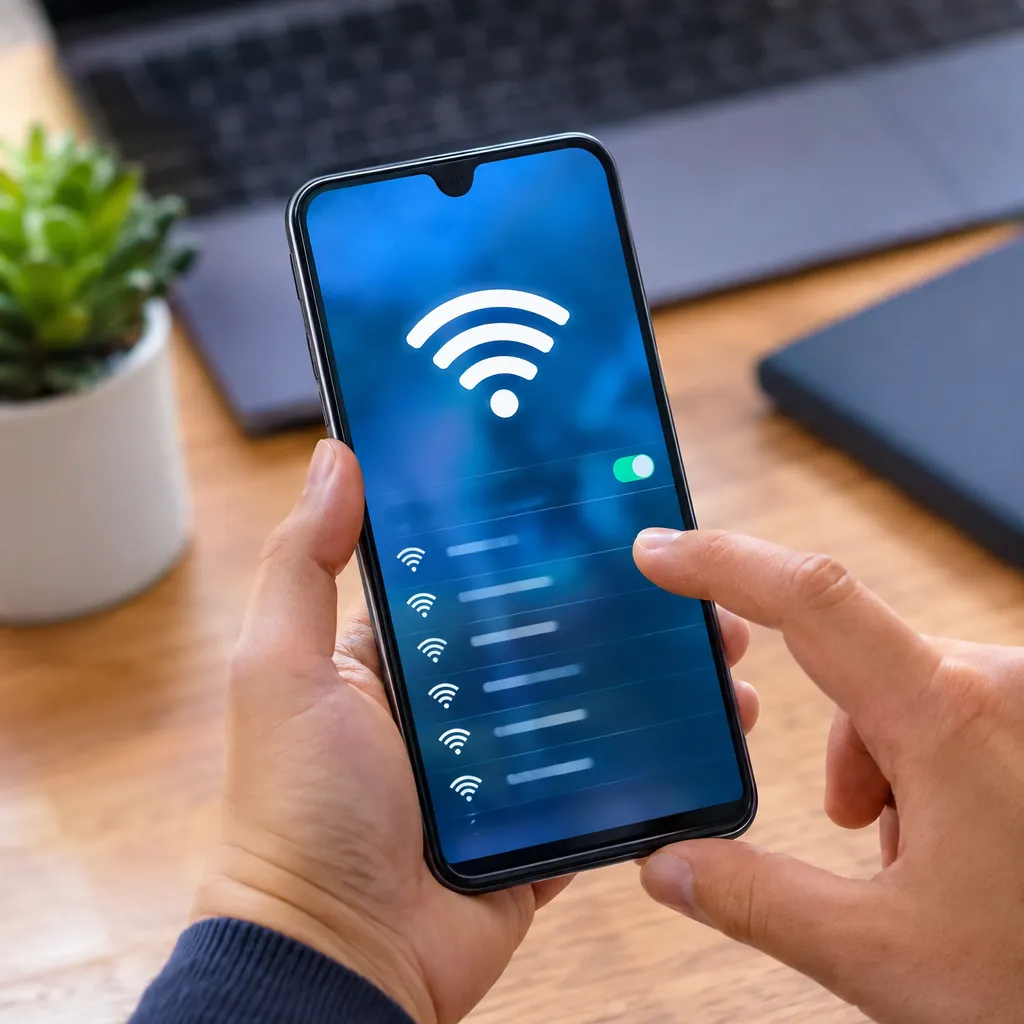
The simplest and most direct way to find available Wi-Fi networks is to access the native settings of your smartphone. On Android, you can open the Settings app, search for the “Wi-Fi” or “Connections” option and activate Wi-Fi to view all detected networks around you. On iOS, the process is similar: you access Settings, select Wi-Fi and automatically the system displays the available networks in real time. Both systems update the list of networks constantly, showing the network name, signal level and in some cases if the connection requires password.
Announcements
When you activate Wi-Fi on your mobile phone, the device starts sending search signals (called probes) that scan the communication channels looking for any available network. This process happens automatically and consumes very little battery, especially on more modern cell phones that use energy efficiency technologies. The list that appears on the screen shows the networks in order of proximity, with the closest usually offering the best signal. You will notice a padlock icon next to the networks that have password protection, while the open networks appear without this indicator.
A practical tip is to leave your Wi-Fi enabled even when not using the internet, as many phones can automatically reconnect to networks you already know. This offers a more fluid experience, especially when you move between different locations. However, this also consumes a little more battery, so you need to assess whether the benefit compensates for the energy expenditure in your specific case. If you are looking for a specific network and can not find it, it may be too far away, that the transmission is disabled or that the network name is hidden.
 WiFi Map: Free WiFi Passwords
Classification:
^^^^^^^^^^^^^^^^^^^^^^^”’
4.27
Age Classification:
Free Classification
Author:
WiFi Map LLC
Platform:
Android
Price:
Free
▶Download on Google Play
Understanding Signal and Quality Indicators
When you view the list of available Wi-Fi networks, you see small icons with waves that represent signal strength. The more waves appear, the stronger the signal and the better your connection will be. This indicator is essential for you to choose from several available networks, as a weak signal network can result in unstable connection, slowness and even frequent disconnections. Understanding these indicators helps you make informed decisions about which network to use at any given time.
Most mobile phones show three to five signal levels, the maximum level being ideal for stable connection quality. If you are in a mall or in an area with many networks available, prioritize those that show at least three or four signal bars. A very weak signal may not be enough to open a simple web page, especially if you are trying to make video calls or watch streaming videos. In addition to the visual indicator, some more advanced mobile phones offer additional information such as the network frequency (2.4 GHz or 5 GHz), the Wi-Fi standard used (802.11ac, 802.11ax) and even the theoretical connection speed.
5 GHz networks generally offer higher speeds and have less interference than 2.4 GHz networks, especially in very congested areas. However, their range is shorter, so they only appear on your list if you are relatively close to the router. If you are trying to connect on a Wi-Fi 6 (802.11ax) network, which is the latest technology, you ensure access to the best speeds available today. Observing this technical information is especially important when you are in a location with multiple networks available and need to choose the best option for your specific use case.
Connecting to Available Networks
Once you identify a Wi-Fi network you want to use, the connection process is simple: you tap the network name (also called SSID) and wait for the system to search for the network. If the network is password protected, an input field will appear on your screen, and you need to enter the correct password to gain access. The password is case sensitive, so pay attention when typing to avoid errors that would result in connection refusal. Once you connect successfully, your mobile saves the password and usually automatically reconnects when you return to that network.
Open networks, without password protection, allow immediate connection, but pose a significant risk to your personal data.When you connect to an open network, especially in public places like cafes or airports, anyone on the network can potentially intercept your data traffic if you are not using applications that encrypt communication.For this reason, it is recommended to avoid performing financial transactions, accessing email or sensitive social networks while connected to open public networks.If you need to use a public network, consider using a reliable VPN service to encrypt your data.
Some phones offer an option called “Connect automatically” which you can disable for specific networks, useful if you want to have full control over when you connect to each network. You can also forget an already saved network by opening the list of known networks in the settings, finding the desired network and selecting “Forget” or “Remove”. This is practical when you were connected to a network of a friend or colleague and do not want your mobile to try to reconnect automatically when you are near that network again. This granular control helps you keep your device safe and managed according to your personal preferences.
Using Specialized Apps to Locate Networks
In addition to native settings, there are third-party apps that offer advanced functionality for finding and analyzing Wi-Fi networks. Apps like WiFi Analyzer, NetSpot, and Wi-Fi Map aggregate detailed information about the networks available around you, including signal strength, channels used, estimated speed, and even recommendations on which network offers the best performance in your location. These tools are especially useful if you are an advanced user or if you are experiencing recurring connection issues that you want to investigate more deeply.
The WiFi Analyzer, for example, shows a visual graph of the different Wi-Fi channels in your area, helping you understand which network is less congested and therefore more likely to offer a stable connection. This type of analysis is particularly valuable in corporate environments or in dense urban areas where dozens of Wi-Fi networks may be broadcasting in the same space. The application allows you to see not only open networks, but also information about hidden networks (which do not advertise their name publicly), offering a complete view of the Wi-Fi environment around you. With this information, you can make more informed decisions about which network to use or even diagnose interference problems that may be affecting your connection.
Wi-Fi Map is another popular app that works differently, featuring a map with locations that offer free Wi-Fi networks mapped by users around the world. When you travel to a new city or country, you can use this app to locate cafes, restaurants, libraries, and other public places that offer internet access. Many of these locations have the password pre-filled or saved in the app community, making the connection even easier. For users who frequently travel or work remotely, apps of this type can be absolutely essential to stay connected without relying entirely on mobile data.
Other applications such as Speedtest by Ookla or the Fast.com they allow you to test the actual speed of your Wi-Fi connection after connecting to a network. This is practical when you are in a new location and want to check whether the network quality is sufficient for your immediate use, such as watching videos or making video calls. Many of these apps also offer histories of your measurements, allowing you to track how the quality of the networks you use varies over time. With these tools at your disposal, you have complete control over your Wi-Fi connectivity experience.
Finding Hidden Networks and Connecting to them
Some Wi-Fi networks are configured with SSID broadcast disabled, which means that the network name does not appear in the standard list of available networks. These hidden networks are usually found in corporate environments or homes where the owner wants greater privacy or security through obscurity. For you to connect to a hidden network, you need to know the exact name of the network and its password, as there is no way to find out this information just by looking for available networks. Specialized applications such as WiFi Analyzer can sometimes detect hidden networks through the analysis of data packets, but even then you will need to provide the full name to connect.
If you know that there is a hidden network you want to connect, you can go to your mobile phone’s Wi-Fi settings and look for an option like “Add network” or “Connect to a hidden network”. On this screen, you manually enter the network name (SSID), select the type of security (usually WPA2 or WPA3), and type the password. After completing this information, your mobile phone will try to connect to the network. If the information is correct, you will gain access to the hidden network just like you would with any other network. This process is simple, but requires that you already have this information at hand, either because someone has already shared it with you.
A common situation where you may encounter hidden networks is in corporate environments where security is a priority.If you are an employee or visitor in a company that uses hidden networks, the IT department typically provides the network name and password during your onboarding or upon your arrival. In homes, homeowners sometimes hide their networks to prevent neighbors from trying to connect, although it should be noted that SSID hiding offers minimal protection against connection attempts by technically savvy users. Understanding how these hidden networks work helps you connect to them when necessary and also understand the fundamentals of Wi-Fi security.
Security Considerations When Connecting to Public Networks
When you connect to public Wi-Fi networks, especially in locations such as airports, train stations or commercial establishments, you are sharing the same network with potentially hundreds of other users. This creates security risks that you need to be aware of and prepared to mitigate. The biggest concern is that anyone on the network can use packet capture tools to intercept unencrypted data that you transmit, including passwords, messages and personal information. This type of attack, known as “packet sniffing”, is particularly easy to perform on open networks where there is no additional encryption.
To protect your data on public networks, you should utilize applications and services that offer end-to-end encryption, such as messaging applications that automatically encrypt all communications. You should also avoid accessing email accounts, social networks or any financial services through unsecured public Wi-Fi connections, especially if you are not using additional protection. If you absolutely need to access sensitive data while on a public network, consider using a VPN (Virtual Private Network) service that encrypts all your data traffic and masks your IP address, protecting your privacy and security.
Another important aspect of security is to verify that you are actually connecting to the legitimate network.In some cases, criminals set up fake networks with names similar to those of legitimate networks (for example, “Coffee_WiFi_Free” vs “Cafe WiFi Free”) in the hope that inattentive users will connect by mistake. These fake networks, known as “rogue access points”, allow criminals to monitor all user traffic. To avoid this, always confirm with the establishment the correct name of the Wi-Fi network before connecting, especially in places where you do not regularly frequent visits”, keep your software updated is also crucial, since maintaining frequent security updates could be known.
Managing Connections and Optimizing Your Wi-Fi Experience
As you connect to more and more Wi-Fi networks, your phone accumulates a list of saved networks that can grow significantly over time. Managing this list is important to maintain the security of your device and ensure that you have an optimized connectivity experience. You can periodically review your saved networks in your Wi-Fi settings, removing those that you no longer use or that you no longer recognize. Removing old networks is especially important if you have visited public places and allowed your mobile phone to save these networks automatically, as this reduces the risk of your device accidentally connecting to unknown or compromised networks.
Some modern phones offer features called “smart connectivity” or “smart network selection” that allow the system to automatically choose between Wi-Fi and mobile data based on the quality and speed available. If you enable this feature, your phone can automatically disconnect from a slow Wi-Fi network and use mobile data if it detects that it would offer better performance. This type of automation is convenient, but you should be aware of mobile data consumption if you have a limited plan. You can disable this feature in settings if you prefer to have full control over when your phone uses Wi-Fi versus mobile data.
A best practice is to review which apps are allowed to use Wi-Fi, as some apps consume a lot of bandwidth even when you’re not actively using them. In your phone’s permissions settings, you can adjust which apps are allowed to access the network so that you keep the bandwidth available for the apps that really matter to you. You can also enable features like “Data Saving Mode” that reduces the consumption of background data from apps when you’re connected to Wi-Fi networks, helping to speed up your overall connection. With these optimizations in place, you can better take advantage of the Wi-Fi connectivity available around you.