App to Scan Vehicle and Identify Problems
Announcements
A vehicle diagnostic app works like a portable mechanic in your pocket, allowing you to identify problems in the car without leaving home. These apps read the error codes generated by your vehicle’s electronic system and translate technical information into accessible language.
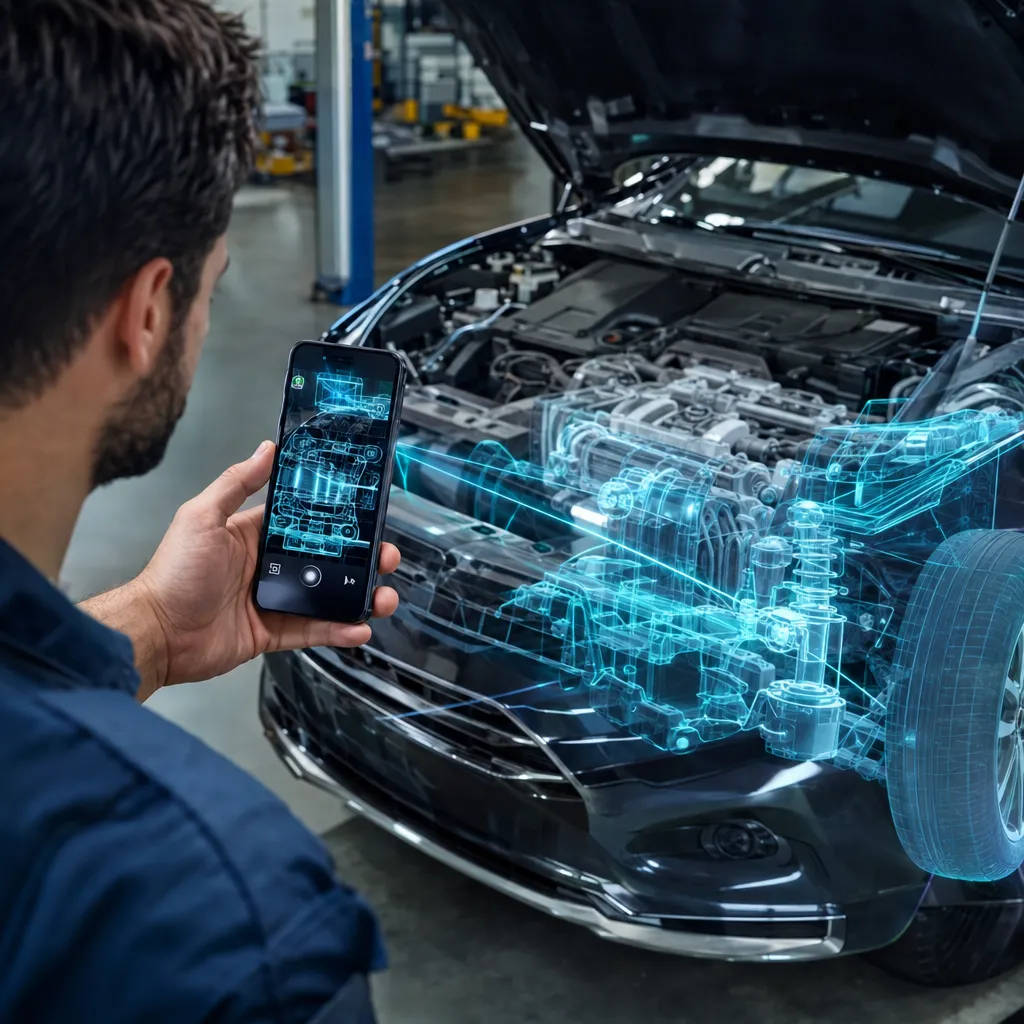
The reading technology uses a physical adapter called OBD-II (On-Board Diagnostic), which connects to a standard port present in virtually all cars manufactured after 1996. When you connect the app to your smartphone, it establishes communication via Bluetooth or WiFi with this adapter, allowing access to real-time diagnostic data of the engine, transmission and other critical vehicle systems.
Announcements
Step 1: Purchase the OBD-II Adapter
The first step is to get an OBD-II adapter compatible with your smartphone, because the app alone can not read the data without this physical device. There are different brands and models available in the market, each with its specific characteristics and varied price ranges. It is important to choose a reliable adapter that is compatible both with your car model and the operating system of your phone (Android or iOS).
Step 2: Install and Configure the App
After purchasing the adapter, you need to download and install a diagnostic vehicle app on your smartphone through the official app store. There are several options available, from free apps with basic functionality to premium versions with more advanced features and detailed analysis. Read carefully the reviews of other users, check the compatibility with your device and confirm that the app supports the Portuguese language.
Step 3: Connect the Adapter to the Vehicle
The OBD-II port is usually located under the steering wheel, near the pedals, or in other locations depending on the car model, so consult the vehicle manual if you have questions. Locate the port, insert the adapter carefully until you hear a click, ensuring a firm and secure connection. Wait a few seconds for the adapter to be recognized and activate Bluetooth or WiFi as indicated in the manual of the specific device you purchased.
Step 4: Start Reading Codes
With the adapter connected and the app open on your smartphone, establish the connection between the two devices by selecting the adapter from the list of available connections. The app will begin to communicate with your car’s on-board computer, presenting a list of error codes (if any) and explanations of what each code means. You can save this data for future queries or share it with a professional mechanic for further analysis.
Care when Using the Diagnostic App
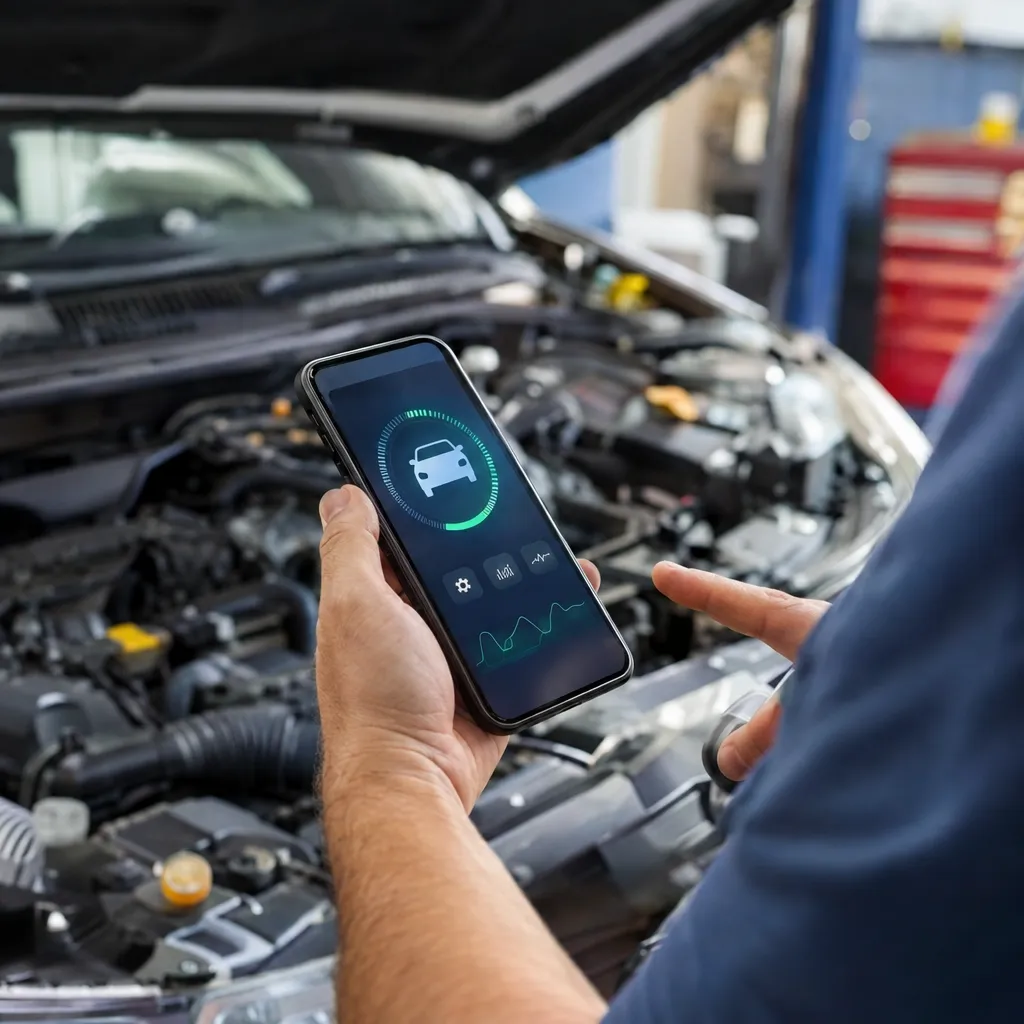
One of the most common mistakes is to ignore the limitations of the application and try to make complex repairs without proper technical knowledge, which can further damage the vehicle. Many users confuse a simple error code with a serious problem, causing unnecessary worries or investing in repairs that are not really necessary. Always interpret the codes carefully, research the specific meaning in the context of your vehicle and, when in doubt, consult reliable sources before acting.
Another frequent error is to depend 100% on the app to diagnose problems, forgetting that these apps offer only a partial view of the health of the vehicle. A diagnostic app can not detect physical wear of parts, leaks not identified by the electronic system or mechanical problems that do not generate error codes. In addition, not all errors require immediate repair: some are just warnings, while others indicate situations that can wait until the next scheduled maintenance.
It is also important not to use the app excessively or unnecessarily, as connecting and disconnecting the adapter repeatedly can end up wearing the OBD-II port of your vehicle. Keep your smartphone battery with sufficient charge during readings and avoid using the app while driving, as it requires your attention and can distract. Protect your adapter and your smartphone from moisture and falls, treating these devices with the care they deserve.
When to Find a Professional Mechanic
If the app indicates error codes related to the engine, transmission, airbag or brakes, it is time to seek a professional mechanic immediately, as these systems directly affect the safety and performance of the vehicle. A qualified professional has more sophisticated equipment, specialized training and practical experience that goes far beyond what an app can offer. Do not try to save by neglecting serious problems identified by the app, as this can result in much higher costs in the future or put your life at risk.
Also look for a mechanic when the same error code appears repeatedly after a cleanup or reset, indicating that the problem has not really been solved. Errors related to sensors, catalysts or emission systems often require more in-depth professional diagnosis, as the app only indicates where the problem is, not the root cause. Remember that the purpose of the app is to inform you, not replace the technical knowledge of a mechanics professional who works with cars every day.