Find out Which Cameras Are Available in Your Area with iPhone
Announcements
Finding security cameras near you using your iPhone is simpler than it sounds. Several apps and tools allow you to view in real time which cameras are available in your area, offering greater security and control over the environment around you.
Smartphone technology has evolved greatly, allowing access to public and private camera networks directly from the palm of your hand.You can monitor specific points in the city, access community surveillance feeds, and even set up custom alerts when you detect suspicious activity in locations near you.
How Camera Apps Work on iPhone
Applications that show nearby cameras work by integrating with geolocation services and public or community surveillance networks.The iPhone uses GPS and location data to identify your exact position, and then crosses that information with a database of cameras available in the region.
Announcements
Most of these third-party apps connect to camera networks managed by city halls, security companies, or communities that make public access available for collective security purposes. You authorize the app to access your location during use, and the interface shows a map with markers indicating exactly where each camera is positioned. By tapping each marker, you can view the feed in real time or history, depending on the access permissions available.
Top Apps to View Nearby Cameras
There are several options of applications developed by companies specialized in security that allow you to view cameras in your area. One of the most popular offers access to public traffic cameras, allowing you to monitor roads, intersections and main avenues of your city directly from the iPhone. The application collects data from cameras installed by public transit agencies and organizes them visually and intuitively.
 Flock Safety
Age Classification:
Free Classification
Author:
Flock Safety
Platform:
Android
Price:
Free
▶Download on Google Play
Another type of specialized application works through neighborhood communities, where residents share feeds from their private security cameras on a voluntary basis. These community applications create a collaborative surveillance network, increasing neighborhood security and allowing you to access cameras from condominiums, residential streets and nearby commercial areas.You can filter the results by distance, camera type or specific area of the city.
There are also platforms that aggregate cameras from commercial establishments, such as stores, restaurants and shopping centers, which make their feeds available to the public. These applications make it easy to view real-time activities in these locations, being particularly useful when you search for information about traffic, crowding or security in commercial areas near your location.
Setting Location and Permissions on iPhone
For the app to work properly, you need to grant location permissions on your iPhone. Go to your device Settings, navigate to Privacy, select Location Services, and then enable this option. Then search for the specific app in the list and choose “While Using the App” or “Always” depending on your privacy preferences and frequency of use.
It is recommended to select “While Using the App” to balance functionality and privacy, as the application will work perfectly during its use without consuming battery continuously in the background. After confirming these permissions, restart the application and it will automatically detect its location, showing all available cameras within a given radius (usually between 1 and 5 kilometers).
You should also enable iPhone camera permission if you want to use photo or video capture features through the app.In the same Privacy menu, locate the Camera option and select the app to grant access. These security settings protect your personal data while ensuring that the app only has access to what is needed to display nearby cameras.
Navigating and Interpreting the Camera Map
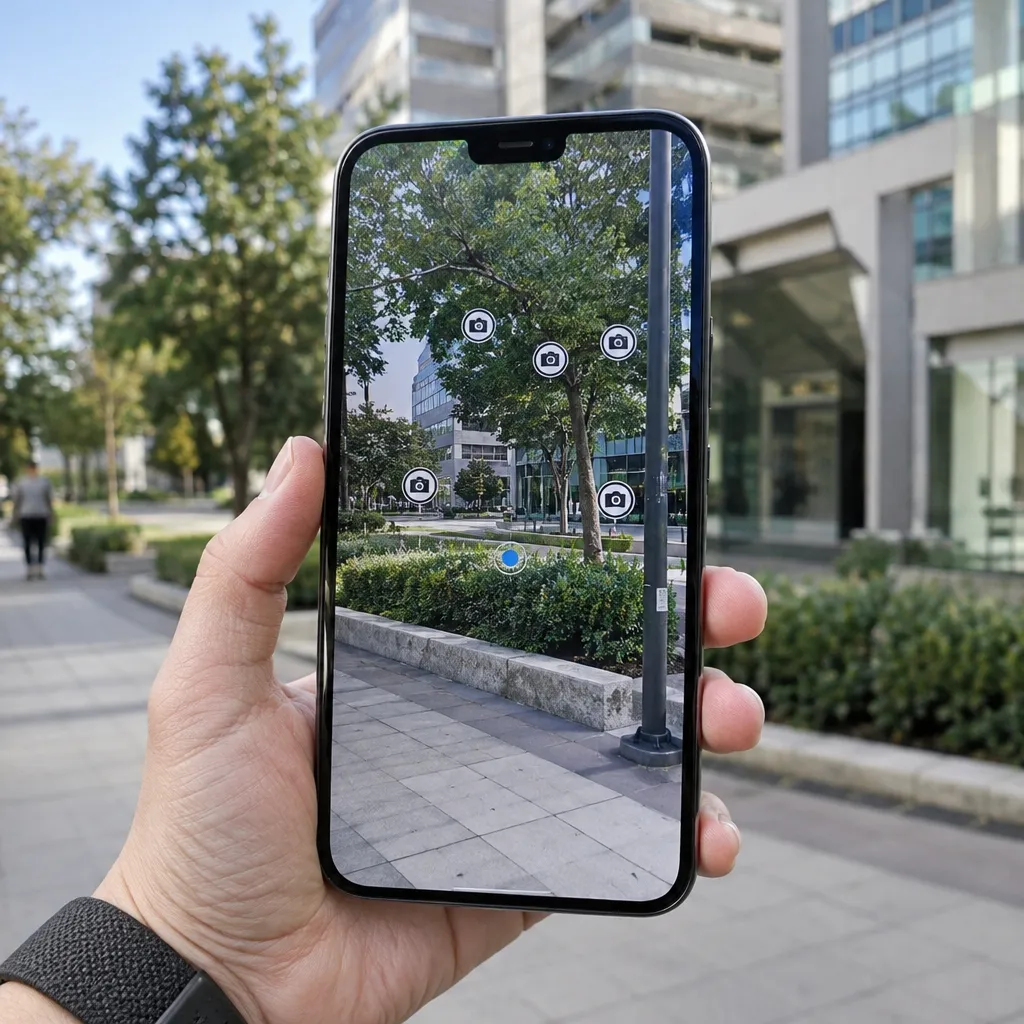
When you open the app, you will see an interactive map with its central location marked by a blue or similar pin, surrounded by several markers that represent the cameras available in the area. Each marker can have different colors or icons, indicating the type of camera (public, private, commercial) or its status (active, inactive, offline). You can zoom in on the map with two fingers or use the control buttons to zoom in or out of the view as needed.
When tapping on any camera bookmark, a pop-up window appears showing essential information such as the camera name, your exact address, the distance to you, and often the quality of the available feed.Some apps display a thumbnail of the live stream in this window, allowing you to view what the camera is capturing without having to open the full stream. Tapping again or selecting an option such as “View Feed” opens the full-screen stream for better viewing.
Most apps offer advanced filters that allow you to choose which camera types to display on the map. You can only enable traffic cameras, disable private cameras, or show only those within a specific distance.These filters are useful when you search for information about a particular category, such as track monitoring during peak times or surveillance of commercial areas on weekends.
Using Real-Time and Historical Feeds
Most apps offer access to the camera’s real-time feed, showing exactly what’s happening at that time in that location. You can pause the broadcast, take a screenshot, or start a recording, depending on the features offered by the app. Many real-time feeds include overlapping information such as time, temperature, traffic conditions, or incident alerts that were just detected.
In addition to real-time viewing, several applications allow you to access the recording history of cameras, if available. You can go back hours or even days to view what happened in a specific location at a previous time. This feature is particularly valuable when you investigate an incident, document an occurrence or simply want to check the movement pattern on a track during certain times of the day.
The quality of history varies by application and specific camera.Some public cameras keep records from 24 to 48 hours, while commercial store cameras can store weeks of recording.The app often allows you to quickly move forward or backward in history, adjust playback speed, and capture specific images of important moments you identify during viewing.
Customizing Alerts and Notifications
One of the most useful features available in these apps is the ability to set up custom alerts for specific cameras or geographic zones. You can set notifications to receive warnings when you detect movement, crowding of people, traffic incidents, or any non-standard activity in a location you are monitoring. When tapping a camera and accessing its settings, look for the “Create Alert” or “Notifications” option.
When setting up an alert, you can specify when you want to receive notifications (business hours, night periods, weekends), what type of activity should trigger the alert and how you prefer to be notified (push notification, email or SMS). Some apps allow you to draw zones of interest in the camera feed, alerting you only when movement occurs within that specific area, reducing false positives and keeping you informed about what really matters.
Notifications appear on your iPhone screen with the option to tap and be directed directly to the camera feed in question. You can manage all your alerts in a central dashboard within the app, enabling, disabling or deleting monitoring as your needs change. This feature turns the app into a personal vigilante that keeps you updated on important events in your area without you having to constantly check the interface.
Advanced Features and Extra Features
Many modern apps offer functionality beyond just viewing cameras. Integration with voice assistants allows you to ask Siri to show nearby cameras or activate specific transmissions using voice commands. Widgets on the iPhone home screen display feeds from the cameras you monitor most often, giving you quick access without having to open the full app.
Sharing features allow you to send links from feeds or captured images to contacts, making it easy when you need to alert friends or family about a situation in a specific location.Some apps include measurement and annotation tools, allowing you to add tags, arrows or text to captured images to document incidents or share specific information about what you have observed.
Pattern analysis is another sophisticated feature offered by premium apps, showing movement trends, peak traffic times, or activity patterns in specific locations over time. This information is valuable for you to better plan your commutes, avoid congested areas at certain times, or identify significant changes in the security pattern of a region you regularly monitor.
Privacy and Security Considerations
By using applications to view nearby cameras, you are accessing transmissions that have been made publicly available or that you are legally permitted to view. Public traffic cameras are maintained by government bodies specifically for collective security, and access to these transmissions is permitted by law. Private cameras shared on community applications exist only because their owners have voluntarily chosen to participate in these networks.
However, you should be aware that your in-app activity is logged, including which cameras you access frequently and at what times. Most serious apps respect user privacy and do not share this information with third parties, but it is recommended to review the privacy policy before using any app for the first time. Always use a secure connection, preferably WiFi at home or trusted corporate networks, when accessing public cameras.
IPhone offers several layers of privacy protection that you can take advantage of. Regularly check what permissions each app has under Settings, and consider limiting location access only while using the app. If the app asks for unnecessary permissions, such as access to your contact list or photos, this could be a warning sign and you should question whether you really need to use that particular app.
Troubleshooting: Solving Common Problems
If nearby cameras do not appear on the map, the first step is to check if your location is enabled and if the app has permission to access it. Go to Settings, Privacy, Location Services and confirm that it is turned on. Search for the app in the list and make sure that you have access to the location. If necessary, disable and re-enable this permission, then restart the app completely.
Slow connection or frozen feed usually indicates internet connectivity issues. Make sure your iPhone is connected to stable WiFi or has strong 4G/5G signal. Try switching between WiFi and mobile data to identify if the problem is on a specific connection. If the feed remains frozen, close the app completely (swipe up from the home screen), wait a few seconds, and open again to restart the connection.
When a feed does not load or display an error, it may mean that the camera is offline, that there has been a crash on the app server, or that the specific camera has temporarily restricted access. Check that other cameras in the same area work properly. If most cameras do not load, the problem is probably with the app or your internet connection, not with individual cameras. Try closing other background applications, cleaning up iPhone memory, or uninstalling and reinstalling the app if the problem persists.
If the location is inaccurate, showing very distant cameras as close or vice versa, calibrate the iPhone location service. Go to Settings, Privacy, Location Services, scroll to the end and tap Compass Calibration. Follow the on-screen instructions to rotate your iPhone forming a pattern in “8”. This process significantly improves the accuracy of your device’s GPS for location applications.
Useful Alternatives and Complements
In addition to dedicated apps, you can use map platforms like Google Maps and Apple Maps, which in some cities display public traffic cameras along with real-time traffic information.These navigation platforms integrate camera data to provide a comprehensive view of road conditions, helping you plan routes to avoid congestion and identify safety issues on major roads.
Social networks and community apps like Nextdoor complement traditional camera apps by allowing neighbors to share information about incidents, suspicious activity or events in the region. While cameras offer objective visualization of what is happening, these community platforms add context and human analysis, creating a robust community surveillance system that combines technology with people-to-people communication.
For specific home security, consider installing smart cameras at the entrances to your home and integrating the camera app with the general nearby camera app you use. Thus, you keep track of your own security while continuing to monitor the wider region where you live.Many of these smart devices connect to your iPhone and allow remote viewing when you are away from home.
Best Practices when Using Public Cameras
While viewing nearby cameras, keep ethics in mind and respect the privacy of others. Although access is public, using the cameras to track specific individuals or monitor other people’s properties abusively can be illegal and is definitely unethical.The legitimate purpose is collective security, understanding traffic patterns and surveillance of public areas for mutual protection.
Document incidents appropriately if you witness something suspicious or dangerous through a camera. Capture the image, note the exact time and place, and report to the appropriate authorities if necessary.This documentation is valuable for police investigations and for establishing crime patterns in a region. Never use camera images for any kind of defamation, blackmail, or malicious purpose against others.
Join secure communities if the app offers this functionality by sharing relevant information that can help neighbors maintain collective security. Alerts about suspected theft, traffic accidents, or criminal activity contribute to a safer, more informed community.
Optimizing Battery and Data when Using the Application
Viewing camera feeds continuously consumes battery and mobile data quickly, especially if you monitor multiple cameras simultaneously. Set data limits in your app by accessing your preferences and disabling video autoplay. Enable on-demand playback, allowing you to choose which feeds you want to watch and when, instead of leaving videos continuously loading in the background.
Use WiFi whenever possible to view feeds, especially if you plan to spend long periods monitoring cameras. This saves your mobile data and offers superior connection speed, resulting in more fluid and buffering-free feeds.If you regularly monitor cameras while charging your iPhone at home, leave the app open and enable the “Power Saving Mode” in iPhone settings to reduce overall battery consumption while other features of the device continue to operate normally.
Limit the number of notifications you receive, as each notification wakes up your iPhone screen and consumes battery. Set up alerts only for specific cameras and locations that really require constant monitoring, leaving other cameras without active alerts. Review these settings monthly and remove alerts for cameras that you are no longer actively monitoring, keeping the app efficient and accountable to your device’s resources.
Integrating with Your Daily Routine
Incorporating close camera monitoring into your routine provides additional safety with minimal effort. Check a traffic camera on your usual commute before leaving home to assess traffic conditions and plan your route. This saves time by avoiding congested roads and provides early warning of accidents or incidents that could affect your commute. Many users quickly check cameras during breakfast, using the time to better plan their day.
If you work in a location and regularly pass through a certain street or neighborhood, set up an alert for a camera in that specific region. You will receive incident notification, allowing you to anticipate problems or avoid affected areas. Parents and guardians can monitor cameras near schools or parks where their children attend, receiving alerts about abnormal activities or safety incidents that may pose a risk.
The app also works as an urban research tool, allowing you to explore the dynamics of different neighborhoods before considering moving to a region. Visualize traffic patterns, business activity, safety and development in different areas during different times of the day.This offers valuable insight that goes beyond what you can observe in a simple visit, helping you make more informed decisions about where you want to live or work.