Complete Guide: Send Single View Messages on WhatsApp
Announcements
Do you want to send messages on WhatsApp that disappear after being read? This functionality exists and is more useful than you think. Learn here how to use single view messages to protect your privacy and communication.
The single view function has transformed the way millions of people share sensitive information. Unlike normal messages that stay permanently in history, these messages offer an extra layer of security and discretion in your daily communication.
What Are Single View Messages
Single view messages are content that permanently disappears after the recipient opens them once. When someone views the message, it self-destructs and is not logged in conversation history. This feature provides extra protection for sensitive information, temporarily shared passwords, or any type of sensitive content that you do not want to remain stored.
Announcements
The app has developed this feature thinking of users who need to share important data without leaving permanent digital traces. The technology ensures that even if someone accesses your contact’s phone, they will not find the message after reading it. This functionality is particularly valuable in corporate environments and personal communications that require discretion.
How to Enable Single View Messages Before Sending
The first step is to open a conversation or select a contact with whom you want to communicate. Tap the attachment icon (the clip symbol or plus sign, depending on your device) and look for the camera or gallery option to send images and videos with this functionality. After selecting the content you want to send, you will see the option of “Single View” or “View Once” on the preview screen before confirming the submission.
Download app Platform: Android ▶Download on Google PlayFor text messages, the process is slightly different depending on your version of the app. Open the typing field and look for an icon that represents the single view functionality, usually located next to the formatting or attachment buttons. Turn this option on before typing your message to ensure that it will be sent with this special protection.
After you activate the function, type or confirm the content you want to send. You will receive a visual notification indicating that the message will be single-view before you press send. This confirmation prevents you from accidentally sharing sensitive content without proper protection.
Step by Step For Different Types of Content
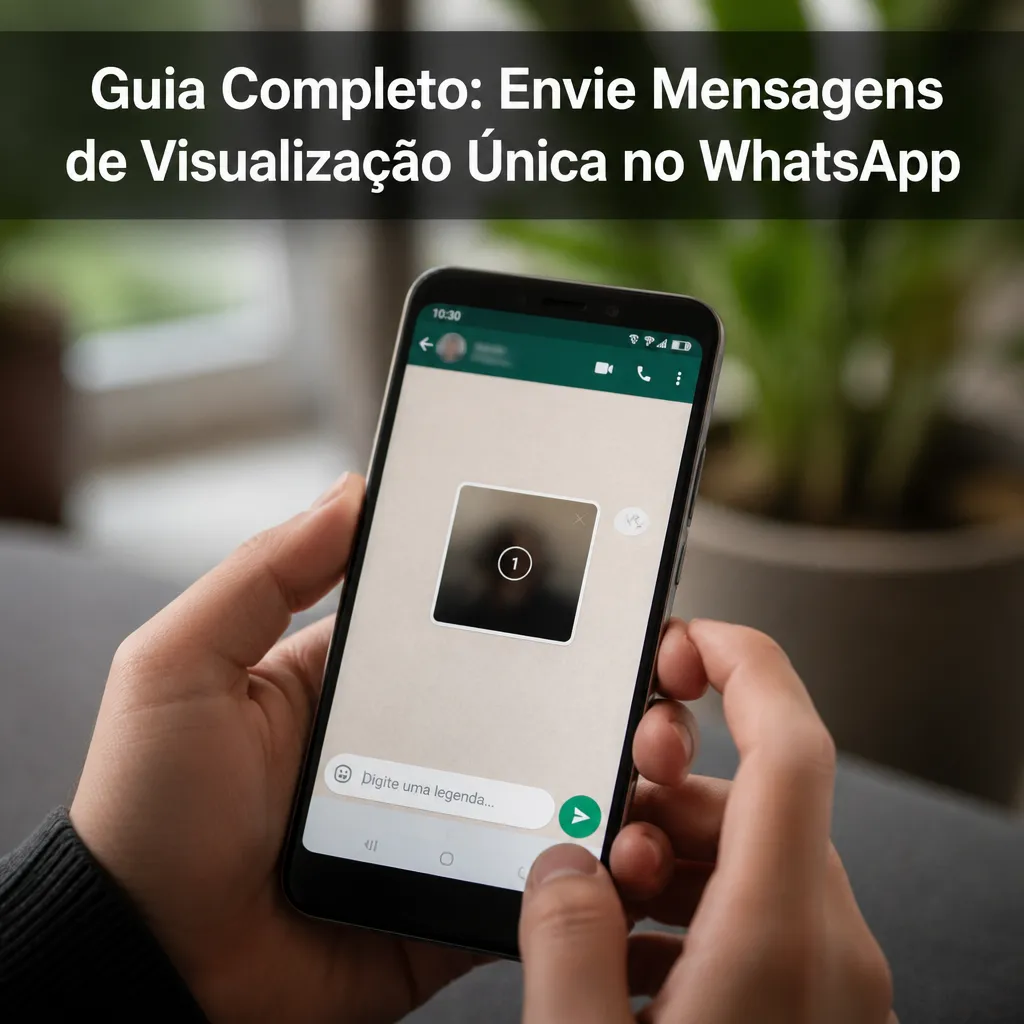
When you want to send a single-view photo or video, the experience is intuitive and straightforward. Open the desired conversation, tap the attachment icon and select the image or video from your gallery. Before you confirm the upload, you will see an icon representing the single view; tap it to activate the function. After sending, the single view icon will appear next to the message, indicating that the content will be destroyed after viewing.
For audios and documents, the procedure is similar to that of images, but with some particularities. Select the desired attachment through the options menu, and before sending, look for the alternative of “View Once” or “Single View”. Keep in mind that not all file types support this functionality; the application usually allows only for photos, videos, audios and certain document formats.
Single view text messages work differently compared to media. Some users need to access specific settings or updated versions of the app to use this function with plain text.If you don’t find the option when typing, make sure your version is fully up to date through your device’s app store.
Real and Practical Use Cases
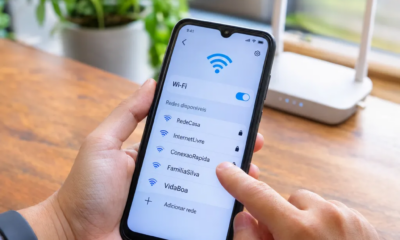
In the corporate scenario, you can use single view messages to share temporary credentials or passcodes with colleagues. Imagine that you need to provide a Wi-Fi password for a business partner to visit your office; sending as a single view ensures that the password is not logged indefinitely in the conversation history. After he accesses the network, the message disappears and you do not have to worry about future security.
In personal relationships, you can share sensitive information such as document numbers, bank details or medical information securely. If your mother needs your CPF number for an administrative process, sending as a single view prevents her from storing this data indefinitely on your phone. The message will be read once and automatically removed, keeping your personal data protected.
In relationship environments, you can use this functionality to share private screenshots or confidential conversations that should not leave permanent records. When you want someone to see evidence or document but do not want it to remain stored, single view solves this dilemma elegantly.
Health professionals or human resources often handle sensitive information that must be shared briefly. An HR professional may send a resignation letter or disciplinary process to an employee using single view, ensuring that the content is only seen by the intended recipient.
How to View and Manage Single View Messages
When you receive a single preview message, it appears in the conversation with a special visual cue, usually an eye icon or the word “View Once”. You will immediately know that the content will disappear after preview. Tap the message to open it completely, and it will be read only once before permanently disappearing from your history.
It is important to note that even after viewing, you cannot screen-shot or copy single-view messages in a normal way. The application has implemented protective measures that prevent the screenshot while viewing these messages, adding an extra layer of security. This limitation is intentional and ensures that the sender can trust that your message will not be propagated or copied.
You can also receive notifications about who viewed your single-view messages. The app usually notifies the sender when the message was read, letting you know that the content was delivered and viewed by the recipient. These notifications work similarly to standard read receipts, but with the crucial difference that the message disappeared after viewing.
Essential Tips for Properly Using This Functionality
Always make sure the message was sent with the functionality turned on before you trust it will disappear. Look for the single view icon next to your sent messages to confirm that protection is on. If you don’t see this indicator, the message was sent normally and will remain in the conversation history.
Keep your app up to date to ensure you are using the latest version of the functionality. Updates often improve the security and reliability of the single view function by fixing potential vulnerabilities. Log into your device’s app store regularly and install any available updates to the app.
Educate your contacts about this functionality so they understand the importance of information shared this way. When someone receives a single-view message, they may not be familiar with the functionality and try to screenshot or copy the content. Explaining in advance that you will use this feature helps to establish correct expectations about how the communication will work.
Do not rely completely on this functionality for extremely critical information in life-or-death security contexts. Although the feature is reliable, someone could still use a separate camera to photograph the phone screen during viewing.For truly critical data, combine this functionality with other layers of security, such as end-to-end encryption and communication through additional secure channels.
Consider the context of your communication before using single view. If you are sharing something that the recipient may need to consult later, sending with single view is not appropriate. Reserve this functionality for information that really should be ephemeral and do not need to be stored permanently.
Limitations and Important Considerations
You should be aware that single view functionality works primarily with media (photos, videos, audios) in many versions of the app. Single view plain text messages are still in the implementation phase on some devices and regions. Make sure your specific version of the app offers this feature for all types of content you want to send.
Syncing between devices can complicate the behavior of single-view messages. If the recipient accesses the conversation on multiple synchronized devices, the message may disappear on one device but remain on others until it is viewed on them as well. This synchronization provides additional security, but it also means that the recipient can access the message in more than one location temporarily.
Some users with older versions of the app may not be able to view single-view messages sent by you. When you send a message with this functionality to someone with an outdated version, they may receive the message, but they will not see the special visual indication. Make sure that your contacts keep the app up to date if you want to use this functionality reliably.
Data backups and rescues can affect single-view messages in specific circumstances.If the recipient’s device creates a backup before the message is viewed, and then restores that backup, the message may reappear.
The functionality does not provide anonymity; the sender will always be identified when the message is viewed. If you want to send something anonymous, this is not the appropriate solution. The single view only ensures that the content disappears after reading, not that the recipient does not know who sent it.
You cannot edit or delete a single-view message after sending, unlike normal messages that can be deleted after a few minutes. Once the message is delivered, you have no additional control over it. So always review the content before pressing the final send button.