Simulated X ray app for iPhone: thermal vision technology
Announcements
Have you ever imagined having a virtual X ray in the palm of your hand?X ray simulation apps for iPhone turn your device into a fun and learning tool, creating stunning visual effects that you intend to see through objects.These apps use your phone’s camera to capture images and apply specialized filters that mimic thermal vision and X ray technology.
The truth is that these simulators can not really see through solid objects, but create a convincing visual illusion through image processing and special filters. You point the camera at anything and the application transforms the image in real time, simulating what it would be like if you had visual superpowers. This practical guide will show you exactly how these applications work, how to use them correctly and what to expect.
How X Ray Simulation Works on iPhone
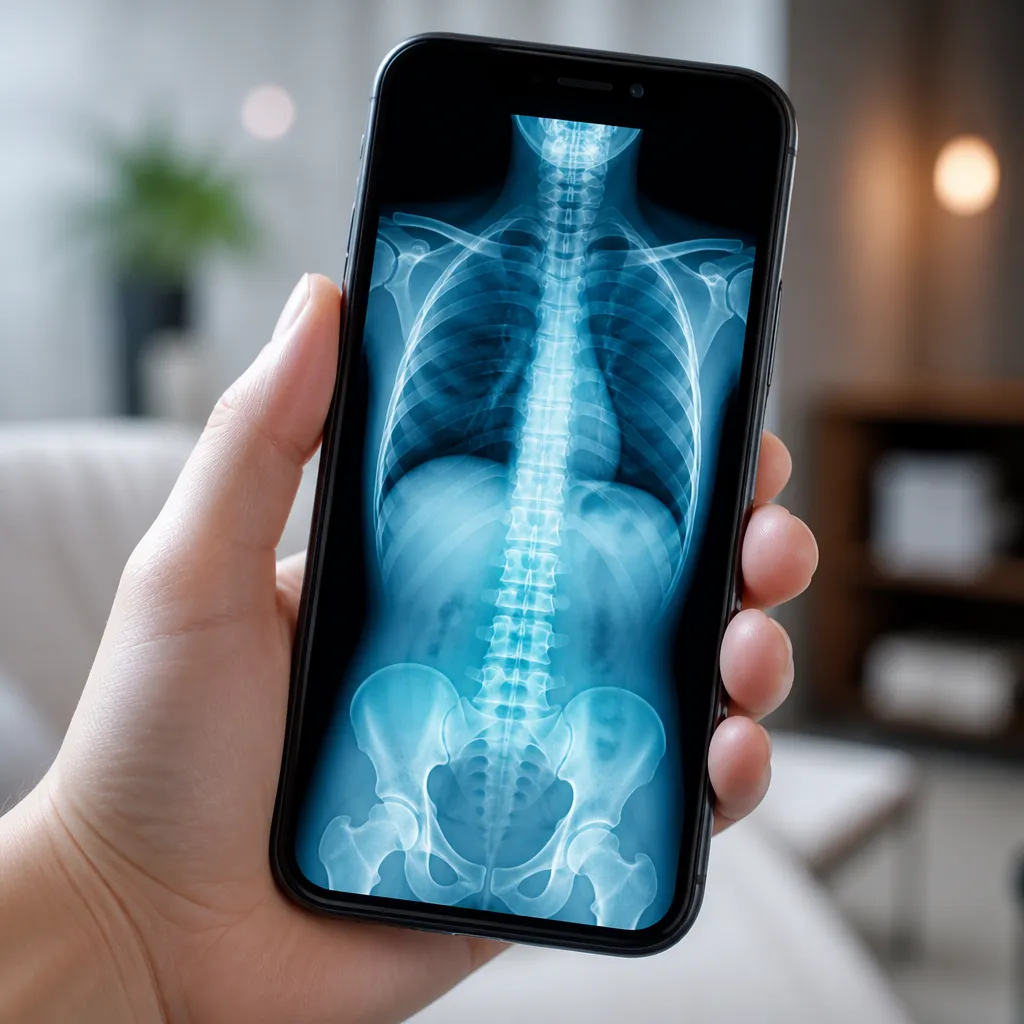
Simulated X ray apps use advanced image processing algorithms to transform what your iPhone camera captures.Basically, they capture real-time data from the camera and apply filters that invert colors, increase contrast, or highlight object edges.This pixel manipulation creates the visual effect that you interpret as X ray, although technically it is just a digital transformation of the original image.
Announcements
The underlying technology involves depth analysis and edge mapping, which the iPhone can already do natively through its camera system. Modern apps take the LiDAR available on new iPhone models to add extra layers of realism to the effect.The depth sensor works along simulated thermal vision filters, creating a result that looks extraordinarily realistic for those who do not know exactly how they work behind the scenes.
Key Features You Find in the Best Apps
Quality apps offer multiple viewing modes that you can quickly switch while aiming at the camera. You’ find filters like classic X ray, thermal vision, photo negative image, skeleton mode that highlights structures, and even scientific lab effects that feign computer analysis.Each mode offers a different visual experience, allowing you to explore various “ of the world around you.
 Xray scan filter cam
Classification:
””^^^^^^^^^^^^^^^^^^
1.59
Age Classification:
Free Classification
Author:
rokdevapps
Platform:
Android
Price:
Free
▶Download on Google Play
Most apps also include image capture features, allowing you to take screenshots of the special effects you create. You can adjust the intensity of the filters, control the camera zoom, and even add on-screen graphics that complement the effect.Some apps offer enhanced portable mode, where you focus on people and the algorithm tries to simulate what your “bones or internal structure based on silhouette and body contour look.
Practical Step-by-Step: How to Use an X Ray Simulator on iPhone
Start by downloading one of the simulated X ray apps from the App Store of your iPhone. Look for names like “X-Ray”, “Thermal Vision”, “Skeleton Camera” or similar with good user ratings. After installation, open the app and you will immediately see the camera of your active phone showing the live view. Grant permission to access the camera when the system requests, because it does not work the app simply will work.
Once the app is open and the camera is up and running, you’ see the image being streamed live in standard mode. Search the screen for a menu of filters or available modes, usually located at the bottom, top, or in a corner of the interface. Tap each filter to switch between the different X ray effects, thermal vision, and other viewing styles the app offers. Try each of them while pointing to different objects to different effects to each other.
To capture an image with the effect enabled, look for the camera or capture button, which is usually highlighted in the lower center of the screen. Tap on it and the application will save the processed image with the filter applied directly to the photo gallery of your iPhone. You can then share these images or store them to view later. Try playing with different angles, objects and distances to find out what effects create the most realistic and interesting.
Fine-tuning is key to getting better results.Many apps allow you to swipe your finger on the screen to adjust the filter intensity, increasing or decreasing the effect in real time.You can also vary the camera zoom by moving away or approaching the focus to see how the effect changes with different focal lengths.Test the app in different lighting conditions, as some filters work under natural light, while others stand out in dark surroundings.
Differences Between Popular Simulators and Which to Choose
There are several options available on the App Store, each with its own particular approach to simulating X ray and thermal vision. One app can focus on scientific realism with effects that try to mimic how real technology would work, while another prioritizes the fun and fantastic visual effect without worrying physical accuracy.
Some apps use artificial intelligence to try to recognize objects and apply specific filters to different elements within the frame.This means that when you point at a person, they receive a different treatment than an inanimate object, creating greater visual coherence. Other apps offer more manual control over filter parameters, allowing you to customize exactly how the effect appearances.
Performance also varies widely available apps. Some run fluidly even on older iPhones, while others require recent models with powerful processes to run without crashes. Read user reviews about lag or crash issues before installing. You should also check that the app offers ongoing support and receives regular updates, the apps abandoned by developers of low compatibility with new versions of iOS.
Understanding the Limitations of Virtual X Ray Simulation
It is crucial that you understand that these applications absolutely cannot see through solid objects despite the compelling visual illusion.The actual X ray works through radiation passing through matter, revealing internal structures effectively.Simulators only manipulate the visual image so that your brain interprets it as if it were seeing through something, but technically they are just rearranging the pixels that the camera captures from the surface of the objects.
You will not be able to see inside a closed case, a wall, or any object that effectively blocks visible light. The application works with available visual information, applying creative transformations that create illusion of depth and internal structure. If the camera cannot capture light from the place, the simulator cannot process any images there. This fundamental limitation needs to be clear in your mind, especially if you are considering using the application for practical purposes that require real object analysis.
In addition, the quality and realism of the effect depend greatly on the amount and quality of light available.In very dark or very bright environment, the effect may seem distorted or unconvincing. Real-time processing also consumes quite a lot of battery from your iPhone, so expect the device to warm up a little and your battery to discharge faster if you use the application for long periods. Keep realistic expectations to better enjoy the experience offered by the simulator.
Practical Applications and Fun Uses of the Simulator
While you can’t really see through objects, X ray simulators offer several legitimate forms of fun and even learning.Many people use these apps at parties and social events to create interesting and entertaining visual content by capturing photos with special effects that impress friends.The app works especially well to create visual illusions with people, where the skeleton or X ray effect gets convincing when applied to human silhouettes.
In the educational context, you can use the X ray simulator to teach concepts about how radiation works, even if only in theory. The application offers a visual introduction to the concept, showing what real technology does, albeit in a very simplified and approximate way. Content producers, artists and video creators often take advantage of these filters to add unique visual effects to their works, creating material that stands out in social networks.
You can also explore creative photography using filters to capture ordinary scenes from a completely different perspective.What would normally be an ordinary photo of an object or environment turns into something visually intriguing when the X ray effect or thermal vision is applied. This creative exploration can help you develop your photographic eye and better understand how different filters and processing affect the visual perception of an image.
Experimenting with different angles, distances and objects helps you better understand how camera sensors and image processing work.You develop intuition about how light interacts with different objects and how algorithms can turn raw visual data into creative representations.For those who work with graphic design, photography or video production, spending time playing with these applications offers practical insights into image processing possibilities that you can replicate in professional software.
Optimization Tips for Better Results on iPhone
Maximize the quality of the X ray effect starting with cleaning the camera lens of your iPhone. A dirty lens with fingerprints or dust drastically reduces the quality of the captured image and, accordingly, the result of the filter.Use a soft, dry cloth to gently wipe the lens before using the application to ensure that you are capturing the best possible visual data.
Position yourself in a location with proper and consistent lighting for best results. Natural daylight usually offers the best effects as it provides clarity and contrast that filters can process well. Avoid direct shadows and abrupt lighting changes that can confuse the app algorithm.Try different light conditions to find out which works best with the specific type of filter you are using.
Keep iPhone in steady hands or use a stand to prevent movement while you adjust and exploit the filter effect. Any camera flicker will degrade the image quality in real time and can make the effect look unstable or broken.If you are capturing photos to share, taking the time to stabilize the device will make a big difference in the final quality of the saved image.
Close other apps running on your iPhone before using the X ray simulator. Multitasking consumes processor resources that could be dedicated to the camera app, resulting in reduced performance, lag or occasional crashes. Especially on older iPhone models, freeing up RAM by closing unnecessary apps can dramatically improve the fluidity of the effect in real time.
Adjust your camera settings in the app if options are available. Many simulators allow you to change the capture resolution, frame rate, or processing intensity. Sometimes reducing the resolution improves performance on older devices, while increasing the processing intensity creates more dramatic effects on more powerful phones.Test different settings to find the optimal balance between visual quality and smooth performance.
Consider upgrading your iPhone to the latest version of iOS available for your model.System updates often include performance improvements and optimizations for specific hardware that benefit camera-intensive applications and image-intensive processing.An updated operating system can allow you to enjoy the X ray app with significantly better quality and fluidity.