How to use security cameras on iPhone in real time
Announcements
Monitoring security cameras directly from your iPhone has become a practical necessity for those who want to protect their home or business. The technology has evolved a lot and now you can view feeds in real time, receive alerts and control equipment remotely, all within your pocket. In this article you will learn how to configure and use this functionality safely and efficiently.
The truth is that many people make critical mistakes when setting up camera monitoring on iPhone, from inappropriate app choices to serious security breaches that compromise the entire home network.
Understanding Real-Time Camera Monitoring on iOS
Security camera monitoring on iPhone works through apps that connect to camera devices installed on your property. These apps receive the video feed directly from the equipment and display it on your phone screen, allowing instant viewing without significant delays.The connection takes place via internet, which means you can watch from anywhere in the world, as long as you have access to a WiFi network or mobile data.
Announcements
The quality of the transmission depends on several factors, including the speed of your internet connection, the uploadability of your router and the configuration of the chosen application. Many users ignore that HD cameras consume a lot of bandwidth, causing crashes and delays in viewing. This is one of the most common mistakes: connecting multiple cameras on a weak connection without considering the impact on speed.
Choosing the Right App: Avoid Common Traps
There are hundreds of apps available on the App Store to monitor cameras, but not all offer adequate security or compatibility with your specific equipment. The first mistake you should avoid is downloading any app just because it has good ratings or many downloads. Many popular apps have serious security vulnerabilities that leave your cameras exposed to hackers.
 DeFlock.me
Age Classification:
Free Classification
Author:
TechBS
Platform:
Android
Price:
Free
▶Download on Google Play
Before choosing an app, make sure it is officially developed by your camera manufacturer or is a reliable integrator that supports multiple models. Generic apps that promise to work with any camera often cause compatibility issues and offer limited features.Search for detailed reviews, not just the stars: many users report frequent disconnections or feed access issues even after uninstalling the app.
Another critical error is installing the first app you find without checking the permissions you requested. Malicious or poorly developed apps can ask for access to your iPhone camera, your contacts, location, and photos. Carefully read what permissions the app is asking for and question why a surveillance camera app needs access to your contacts or location history.
Initial Setup: Steps Most People Ignore
Proper configuration is the basis for effective and safe monitoring.Start resetting the default password of your security camera immediately after installing it. This is the number one error: leaving the default password of the manufacturer active, which allows anyone with internet access to find and view your camera using public search tools.Many users do not even know that their cameras are exposed until it is very late.
Create a strong password that combines upper and lower case letters, numbers and special characters. Write down this password in a safe place, separate from your iOS device. Then connect the camera to your WiFi network through the official app, always choosing a network protected by a password also robust. Never connect cameras to open or public guest networks, as anyone on the network can intercept the feeds.
The next often overlooked step is to properly verify and configure remote access in the app. Many apps offer this feature but leave you with insecure default settings that can expose your feed to third parties. Go into the app’s privacy settings, enable two-factor authentication if available, and review who is allowed to access each camera.
Optimizing Connection for Stable Transmission
A camera transmission with constant crashes frustrates any user and compromises the purpose of surveillance. The problem is usually in insufficient internet speed or poor positioning of the WiFi router.If your cameras are too far from the router, the signal weakens, causing frequent connection drops. Put the router in a central and elevated location on your property to ensure better coverage.
Check the upload speed of your internet connection as this is the critical factor for cameras. An upload of at least 5 Mbps is recommended for a single camera in HD quality, and even more so if you monitor multiple cameras simultaneously. Many users confuse download speed with upload and discover the problem only when they try to use the application. Contact your internet provider if the speed is below what you expect.
Another common mistake is connecting many devices to the same WiFi network without prioritizing camera traffic. Use the QoS (Quality of Service) function available on most modern routers to give priority to camera feeds.This ensures that even when someone is watching 4K video on another device, their cameras will continue broadcasting without delays.
Security: Protecting Your Surveillance System
The security of your monitoring system is just as important as the security that cameras provide. Hackers constantly look for unprotected cameras to access feeds, collect intelligence on the distribution of your home and even use your network as an entry point for other devices. The first step is to keep the application always up to date, as each update often contains essential security fixes.Many people disable automatic updates without realizing the risks that this creates.
Enable two-factor authentication on your camera app account, even if it seems inconvenient at first. This mechanism adds an extra layer of protection by requiring a code sent by SMS or email in addition to your password. Although some users complain that this makes logging in slower, the added security largely compensates for the minor inconvenience.
Periodically review the devices that have access to your camera system. If you have shared access with a family member who no longer uses, revoke access to it. Many violations occur through forgotten shared accounts of former family spouses or friends. Check the login activity in the application; responsible platforms show date, time and location of each access.
Do not share screenshots or videos from camera feeds on social networks, as they may contain valuable information about the disposition of your property and routine. Some users post images of cameras capturing “funny” moments, not realizing that they are revealing to criminals when the house is empty or when people are present.
Maximizing Advanced Features and Features
Most users use only a fraction of the features available in the security camera app. Explore notifications and alerts: you can set the app to send push notifications when it detects motion, sound, or unfamiliar faces. This feature turns your camera into a proactive security system, alerting you immediately when something abnormal happens.
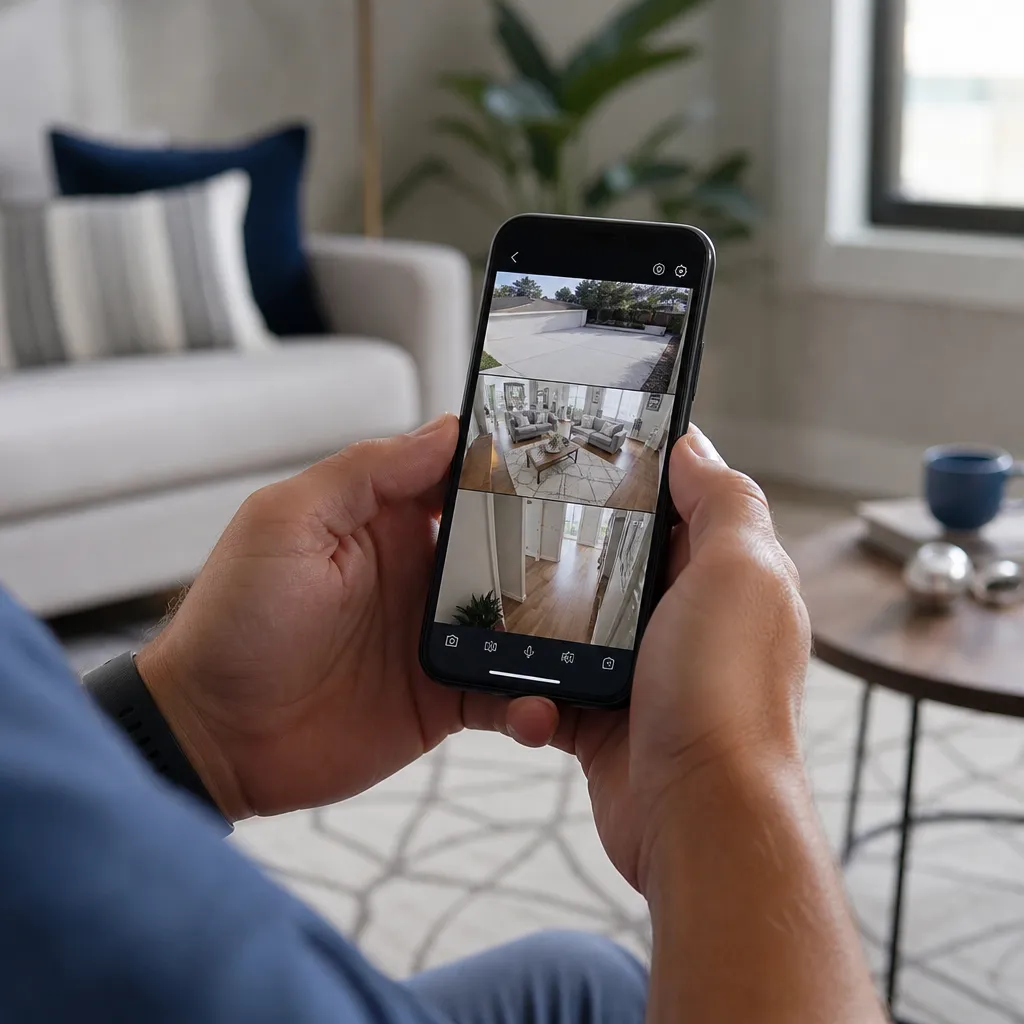
Adjust the sensitivity of motion detection to avoid false notifications caused by pets, swaying trees or passing cars on the street. Many users disable notifications completely because they get frustrated with constant alerts.The error lies in not having properly calibrated the sensitivity. Dedicate a few days testing different settings until you find the optimal balance for your situation.
Learn to use the continuous or event recording functionality offered by your app. Continuous recording consumes more cloud space and internet bandwidth, but offers complete coverage. Event recording saves resources but can leave gaps if the event is only partially detected.
Set up stream quality according to your situation: you can use maximum quality when your connection is good and automatically reduce when the internet slows down. Some apps even offer adaptive compression that maintains visual quality while reducing bandwidth usage. Enabling these features saves data if you are monitoring by 4G or 5G from your mobile provider.
Troubleshooting: Solving the Most Common Problems
If the camera app does not connect, do not jump right away to uninstall and reinstall; there are more effective troubleshooting steps. First, make sure the camera is connected to the electrical current and the status LED indicates that it is online. Some users assume that the camera works when in fact it has fallen off the network and restarted. Restart the WiFi router waiting about two minutes for it to return to normal, then check the connection again.
If the camera still does not connect, go into your router’s admin panel and look for the device. Many routers have a list of connected devices showing connection status. If the camera is listed, the problem may be in the app; try logging out and logging in again. If the camera does not appear, it may have lost the WiFi connection and needs to be reconfigured using the original pairing process.
Transmission delays and crashes often indicate bandwidth issues. Test your internet speed using an appropriate app on your iPhone; compare the current upload speed to the speed you have contracted with your provider. If it is significantly slower, restart your modem and router. If it remains slow, contact the provider as there may be line congestion or technical issues.
Authentication issues where the app constantly asks to log in indicate potential security vulnerabilities or password changes you forgot.Make sure your password has not expired in the camera admin panel.If you are using two-factor authentication, make sure you have access to the phone number or email address you registered; losing that access may prevent you from signing in.
Continuous Maintenance for Lasting Surveillance
Keeping your monitoring system running smoothly requires ongoing maintenance that many users neglect.Wipe camera lenses monthly with a soft, dry cloth, as dust and dirt affect image quality and can create false positives in motion detection.If cameras are exposed to weather, inspect them after heavy rain or storms to ensure no water or dust has entered.
Review your accounts regularly to remove iOS devices you no longer use. If you switched iPhones, revoke access from the old device in the management panel.Many users underestimate the risk of leaving multiple devices with access to the surveillance system; the more devices, the greater the chance of compromise. Keep a documented list of all iPhones, iPads and other devices that have access to the cameras.
Update the firmware of the cameras when available, not just the app. The firmware is the camera operating system and contains critical security fixes. Many users update the app but forget to update the firmware, leaving the cameras vulnerable even if the app is safe. Check the update instructions specific to your camera model, as the process varies between manufacturers.
Periodically test your remote access from outside your home network to ensure it is working. If you need to monitor during an emergency while away, it is essential to know that the system works properly outside the home.Many users discover problems only when they really need to use remote access and it is already too late. Take a few minutes each month to validate this critical functionality.
Integration with Other Devices and Ecosystems
If you have other smart devices, consider integrating your camera system with them to create a cohesive security ecosystem.Many camera apps work with home automation platforms that let you turn on lights, lock doors, or ring alarms when they detect motion.
Make sure that integration is done through secure protocols and that you fully understand what data is being shared between applications. A common mistake is connecting your camera system to an automation platform without checking the privacy policy, resulting in surveillance data being collected and potentially sold to third parties.
Use automation features with clear and tested purpose. For example, automating the triggering of a light when motion is detected makes sense in many scenarios. However, automating door unlocking based on facial recognition detection is riskier and requires rigorous testing before actual implementation. Start with simple automations and only move on to complex automations once you have confidence in the system.
Keep camera networks and home automation separate if possible by using different WiFi SSIDs and different passwords.This adds an extra barrier of protection: if a camera is compromised, the hacker will not have automatic access to your home automation system.Many advanced routers allow you to create separate WiFi networks for different types of devices, a functionality worth exploring.