Simple Trick to Find All Hidden Photos from Your Mobile Phone
Announcements
The photos hidden on your phone can be there all the time, and you do not even know it. Often, they end up forgotten in system folders, third-party apps or even in deep layers of storage that no one accesses by chance. Discovering these images is not as complex as it seems, and this guide will show you how you can access them in a few minutes.
Revealing hidden photos has become a real need for many people. You may have deleted something by mistake, stored images in a place that does not remember, or simply want to better organize what is stored on the device. Whatever the situation, there are practical and efficient methods that work both on Android and iPhone.
Why Photos Hide on the Mobile Phone
Photos may disappear from the main gallery for various technical and deliberate reasons. Some social networking applications, such as WhatsApp and Telegram, save images in specific folders that do not automatically appear in the cell phone gallery. These folders usually start with a dot (.) on Android, which makes them invisible by the default file manager.
Announcements
You may also have manually moved photos to the “Hidden” or “Junk” folder of your smartphone. On iPhone, there is a dedicated folder called “Hidden” in the photo gallery itself, where images can be moved intentionally. On Android, advanced gallery applications allow you to create private folders with password or biometric protection, isolating images from immediate access.
Another common scenario is that of photos saved in the cloud or in specific storage applications. Google Photos, OneDrive and iCloud automatically synchronize images, but these images do not always appear visually in the device gallery.In addition, apps dedicated to storing photos privately, such as digital vaults, store everything on their own servers and interfaces.
 Snapchat
Classification:
^^^^^^^^^^^^^^^^^^^^^^^”’
4.25
Age Classification:
Classification 16 years
Author:
Snap Inc
Platform:
Android
Price:
Free
▶Download on Google Play
Finding Hidden Photos on Android
On Android, the most direct method is to enable viewing hidden files within the native file manager. Open the file manager, enter the settings (usually represented by three dots or gear) and look for the option “Show hidden files” or “View hidden files”. After this action, you will see folders that start with dot, such as “.WhatsApp” or “.Telegram”, which contain photos sent and received in these apps.
If you prefer to use the Android photo gallery, open the application and look for a menu or tab called “Albums” or “Folders”. Some native galleries automatically show all folders with photos, including hidden ones, without any extra settings required. You can also find a filter or selection icon that allows you to view different types of media and folders simultaneously and chronologically.
Third-party applications specializing in media management offer more complete views of stored photos. Apps like Google Photos bring advanced search, automatic sorting and even recovery of images that you recently deleted (they stay in the trash for 30 days before being permanently removed). You can simply open these apps and browse the folders to find everything that is hidden or organized in a non-obvious way.
Recovering Hidden Photos on iPhone
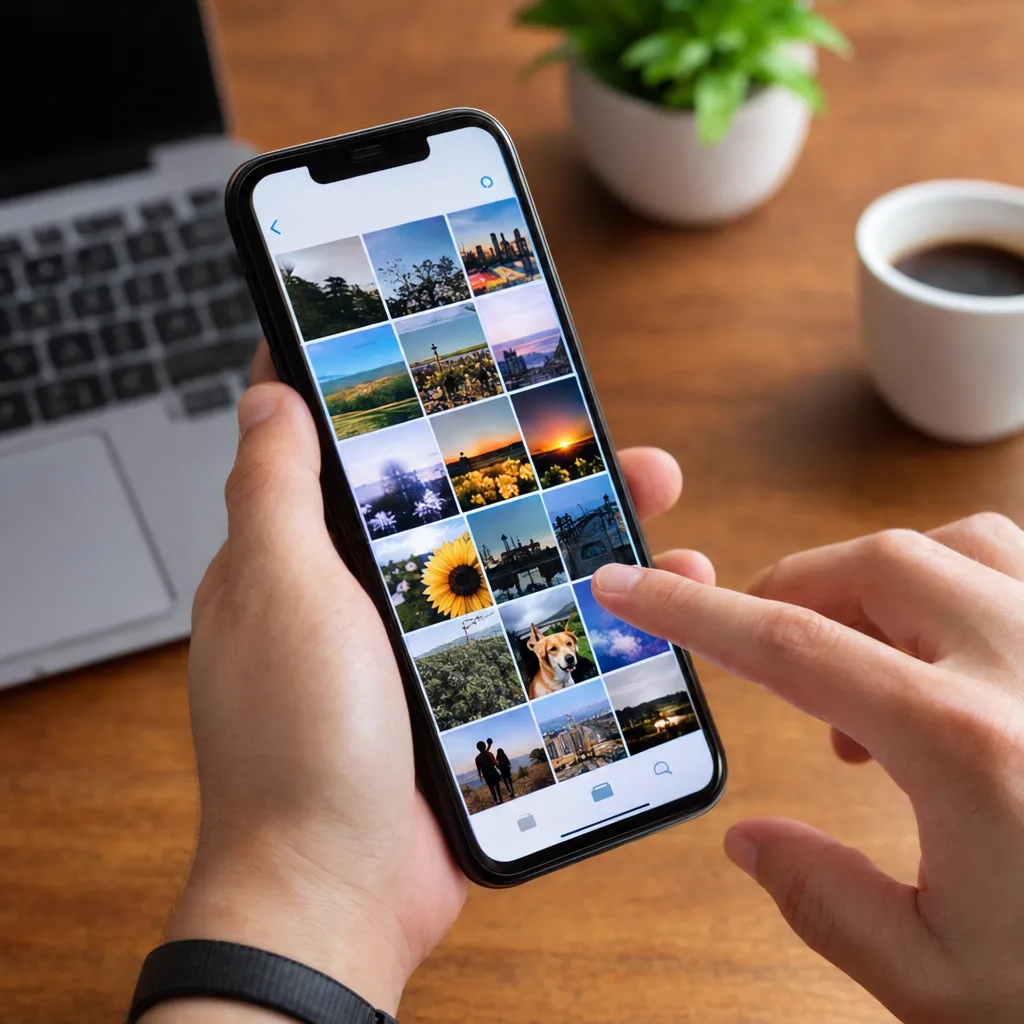
On iPhone, the process is more centralized because Apple organizes everything within the “Photos” gallery Open the Photos app and swipe to the bottom of the tabs until you find the “Albums” tab There you will see a section called “My Albums” with all the folders, including the “Hidden” folder, which stores exactly the images you manually hidden.
To access the Hidden folder, simply tap it on your iPhone. There will be all the photos you have marked as hidden over time. If you do not remember having hidden something, it may mean that someone with access to your device did it, or that iOS itself automatically moved certain images (this is rare, but it can happen in system updates).
If you use iCloud Photos (formerly called iCloud Photo Library), make sure your internet connection is active. Some photos may be synced only in the cloud and not downloaded locally on your device. Go to Settings > [Seu Nome] > iCloud > Photos to check sync status. You can force download all photos by tapping “Download and Keep Original” instead of leaving in “Optimize iPhone Storage” mode.
Using File Managers for Full Access
One of the most efficient tricks is to use an advanced file manager that has administrator permission or root access. These applications can see absolutely everything stored on the device, including system files, application caches, and private folders that normal galleries do not display. On Android, applications such as File Manager or similar allow you to navigate through the complete structure of internal and external storage.
Inside the manager, you should navigate to the root folder (/) and then search for the folder “storage/emulated/0” or “sdcard”. There you will find the folder “DCIM” (where the camera saves photos by default), “Pictures” and other media folders. But the real value is in exploring hidden folders like “Android/data” and “Android/media”, which contain images downloaded by specific applications. WhatsApp, Instagram, Telegram and Snapchat all store media in subfolders inside “Android/media”.
You can even create an advanced search in these managers to search for specific file extensions such as .jpg, .png or .gif. This gives you an overview of absolutely all images on your device, regardless of where they are stored. Some managers allow you to filter by modification date, size or even by metadata, making it easy to find specific photos you are looking for.
Accessing Photos in Private Apps and Digital Safes
Many users use applications dedicated to storing photos privately and securely. These third-party tools work as digital vaults, encrypting images and requiring password or biometric authentication before allowing access. If you have installed one of these apps (such as Vault, Hide It Pro, or similar), you need to open the specific app and log in to see the photos stored inside it.
The challenge here is that if you forgot the password or biometrics set up, recovering the photos becomes significantly more difficult. Most of these apps do not offer direct password recovery; they were justly designed to be virtually impenetrable.You would have to contact the support of the specific app or, in the last case, do a factory reset of the phone (which would erase everything from the device).
If you’re not sure if you’ve installed such a safe, search the home screen for suspicious icons or open the app store (Play Store or App Store) and go to “My apps and games” or “Purchases” to review everything that’s installed. You can even search for names like “Safe”, “Vault”, “Gallery Lock” or “Private” to identify if you have something of the type installed. Once identified, just open the app and log in to retrieve the photos stored there.
Checking Cloud Folders and Synchronization
Google Photos is the largest repository of hidden photos that most people do not realize having. If you have enabled automatic backup at some point, all your photos may be synced in the Google cloud, even if they no longer appear in the mobile gallery. Open the Google Photos app (or access via browser) and you will see a complete library of everything that has been backed up.
Within Google Photos, you can use advanced search to find images by date, location, object or even by color. This search works through Google’s artificial intelligence, then you can search for “cats”, “beach” or “night” and it will return all related photos. If you deleted something from your phone but the backup was active, the photos will be safe and recoverable here (within 30 days after deletion, the images will go to the trash before being permanently removed).
On iPhone, iCloud Photos works similarly. Access iCloud.com in the browser, log in with your Apple account, and you’ll see the Photos library with everything that’s been synced. You can even download individual or batch photos directly from there. Other services like OneDrive (Microsoft) and Dropbox also sync photos automatically if you’ve set this up, so it’s worth checking out these apps as well.
Recovering Recently Deleted Photos
When you delete a photo from the gallery, it doesn’t disappear immediately. On Android, most galleries move the images to a “Junk” or “Deleted” folder where they stay for 30 days before being permanently removed. On iPhone, the “Recently Deleted” folder keeps photos for up to 40 days. To recover these images, simply open the gallery app, search for the trash folder and restore what you want.
Inside the gallery, you usually find the trash can option in the “Albums” tab (iPhone) or in a dedicated menu (Android). Tap the photo you want to restore and look for a “Recover” “Restore” or “Put Back” button.The photo will return to the place where it was originally inside your gallery. This is one of the simplest tricks of all, but many people do not know that there is this layer of security.
If the 30 or 40 days have passed and the photo has been permanently deleted, you still have a chance: specialized data recovery applications on mobile phones can be able to restore the photos. These tools access the device storage at a deep level and look for data fragments still present on the hard drive. The less you use the phone after deleting something, the greater the chance that these apps will be able to completely recover the file.
Using Advanced Search and Photo Metadata
Digital photos contain hidden information called EXIF, which includes date, time, location, camera used and even GPS coordinates. If you are trying to find specific photos, this information is pure gold.Many photo managers allow you to filter and search based on this metadata, making it extremely easy to locate an image that you know when or where it was taken.
In Google Photos, you can click on any photo and see all the EXIF details. You can also access “Advanced Search” and filter by specific period, geographic location or even by the type of device that captured the photo. If you know approximately when a photo was taken, say “last two weeks”, you can use this to drastically reduce the search scope among thousands of images.
Third-party apps like ViewExif (Android) or Photos Exif Editor (iOS) offer even more detailed views of metadata. You can see not only location, but also camera model, shutter speed and other technical parameters.If you are looking for photos taken with a specific camera or on a precise date, these tools turn the search into something fast and precisely targeted.
Safety Procedures When Finding Hidden Photos
Once you find and access hidden photos, it is important to take appropriate security measures. If you have discovered images that you do not recognize or suspect that someone has placed there without your permission, this may indicate a security problem on your device.Changing all your passwords, especially that of Google or Apple, is the first step.
If hidden photos are your own personal privacy, now is a good time to rearrange everything securely. You can move sensitive images to a password-protected digital vault, delete those you no longer want, or back up to a secure location (such as an encrypted external hard drive). Never leave private photos just scattered around the main gallery where anyone with physical access to your phone can see them.
It’s also worth reviewing the permissions of each installed app. Go to Settings > Apps (or Privacy on iPhone) and check which apps are allowed to access your photo gallery. Remove permissions from any app that doesn’t need them. Many apps ask for access to photos “for the best experience”, but don’t always really need that permission; restricting those accesses protects your privacy.
Organizing and Cataloging Found Photos
Once you’ve found all the hidden photos, make a good organization prevents them from disappearing again. Create a logical folder system on your phone that makes sense to you: by date, by theme (travel, family, work), or by quality. On Android, you can do this natively in the file manager. On iPhone, use the creation of dedicated albums within the Photos app.
Google Photos offers automatic organization through thematic labels and collections. The app automatically identifies people, animals, objects and scenes in your photos, grouping them together without you having to do anything manually. This is especially useful if you have thousands of photos and want to retrieve something specific without having to scroll endlessly. You can also create dedicated theme albums shared with other people if necessary.
Regularly backing up your organized photos is equally important.Use Google Photos, iCloud, OneDrive or any cloud service to ensure you have secure copies of everything.If your phone breaks, wets or is stolen, you will still have all the images intact in the cloud.This is the best protection against permanent data loss, especially for photos that have sentimental or professional value.
External Tools and Desktop Programs
If you want an even deeper approach, connecting your phone to a computer gives you full access to storage. You can use programs like Android File Transfer (for Mac with Android), Finder (for Mac with iPhone), or Windows Explorer (for Windows) to navigate through the device’s file structure as if it were an external drive.
Specialized desktop programs like ADB (Android Debug Bridge) go even further, offering full administrative access to Android. You can use ADB to list all files, including those on the system, and even extract data from apps that would not allow normal access. This approach requires technical knowledge and enable “Developer Options” on Android, but gives you the most complete control possible over your data.
For recovery of permanently deleted photos at a professional level, applications such as DiskDigger (Android) or iMobie PhoneRescue (iOS) specialize in this. These third-party tools do deep scans of the device storage looking for file fragments still present. If you deleted a photo months ago but want to recover it now, these tools offer a real (though not guaranteed) possibility of success.
Preventing Future Problems with Missing Photos
Establishing an automatic backup routine is the best defense against losing photos again. Both Android and iPhone offer integrated automatic backup: Google Photos on Android and iCloud Photos on iPhone. Enabling these options ensures that every photo taken is automatically synced to the cloud, creating a secure copy that can never be fully lost, even if the device is reset or destroyed.
Also establish a conscious practice of not concealing or deleting photos thoughtfully.Many people hide images on impulse and then forget that they did it, leading to confusion later.Keeping an organized and clear library from the beginning saves search time in the future.If you really need private folders, use a dedicated vault instead of mixing things in the main gallery.
Periodic review of your mobile phone (monthly or quarterly) is also a good practice.Take an hour to open your gallery, review what is there, delete duplicates and bad photos, and ensure that nothing important was lost inadvertently. This simple maintenance prevents hundreds of photos from accumulating in a disorganized way and reduces the chance of important photos falling by the wayside or appearing hidden by accident.