Apps to See Nearby Security Cameras
Announcements
You want to monitor security cameras near your location, but you don’t know where to start.There are specialized applications that allow you to view broadcasts from public, private cameras and real-time video surveillance systems, offering an extra layer of security and control.
 DeFlock.me
Age Classification:
Free Classification
Author:
TechBS
Platform:
Android
Price:
Free
▶Download on Google Play
In this article, you will find out how apps work to see nearby security cameras, what are the best options available and how to use them safely and efficiently. In addition, we will present a practical checklist to guide your choice and implementation.
What Are Apps for Viewing Nearby Security Cameras?
Apps to see nearby security cameras are tools that connect your smartphone to video surveillance systems installed in your home, office or on public cameras in your region. These applications act as intermediaries between camera equipment and your mobile device, allowing remote access and real-time viewing through internet connection.
Announcements
The technology behind these apps uses video streaming protocols, data encryption, and cloud servers to ensure secure transmission of images. You can monitor multiple cameras simultaneously, receive motion alerts, store recordings, and even integrate the system with other smart devices in your home.
The differential of this category of apps is the ability to locate nearby cameras through geolocation and proximity filters. Unlike generic video surveillance applications, these tools focus on discovering and accessing cameras that already exist in your neighborhood, offering a broader perspective of community security.
How These Apps Work
When you download an app to see nearby security cameras, the first step is to create an account and set up the location. The app uses your smartphone’s GPS to identify available cameras within a given radius, usually from 500 meters to 5 kilometers, depending on the density of devices in your region.
The connection takes place through standardized protocols such as RTSP (Real Time Streaming Protocol) or ONVIF (Open Network Video Interface Forum), which work independently of the camera manufacturer. You enter the camera access data (username, password and IP address) into the app, and the tool establishes the communication bridge between your device and the video equipment.
Many of these apps work without requiring additional hardware beyond the camera you already own. If the camera has network connectivity, either over WiFi or Ethernet cable, it can be integrated into the app. The system maintains a database of cameras registered by users, which allows others to discover public or shared cameras in your geographic area.
Most apps offer staggered access levels: video-only viewing, controlled access (zoom, motion), and administrative access with the ability to change settings.This permission system ensures that each user sees only the content they are authorized to view, protecting the privacy and security of broadcasts.
Top Apps Available in the Market
The Arlo Security application is one of the most popular solutions for monitoring nearby cameras.It offers intuitive interface, real-time notifications and cloud storage.The platform allows you to control cameras of multiple brands and locate video surveillance systems in your neighborhood through geolocalized search.
Ring, also known as Ring Smart Home, provides access to security cameras and smart video gatekeepers.The app features Alexa integration, enabling voice control, and features advanced detection of people versus packages.
Wyze is another affordable alternative that offers robust functionality. Its application allows you to view multiple cameras, access recording history, and create automation routines. The system can identify brand cameras in your area and suggest connections based on geographic location.
Nest, developed by Google, integrates smart security cameras in a controlled ecosystem.The app offers detection of people, animals and vehicles with artificial intelligence. You access nearby cameras registered in the Nest system and synchronize with other Google Home devices in your home.
Camlytics works with traditional surveillance cameras by converting them into intelligent systems. The application uses local video analysis to detect motion, faces and objects.You can locate compatible cameras near you and view feeds without relying on centralized cloud servers.
Hikvision, specialized in professional security systems, offers app that connects high-definition cameras and corporate surveillance systems. Its platform allows monitoring of multiple cameras, video backup and secure remote access for security managers.
Essential Resources to Look For
When choosing an app to see nearby security cameras, you should check that the tool offers real-time viewing with low latency. Video quality matters a lot: look for apps that support at least 1080p resolution, and ideally 4K for monitoring larger areas.
Motion detection is a crucial feature that allows you to receive automatic notifications when something moves in the monitored area.Some applications have artificial intelligence to distinguish between people, animals and vehicles, reducing false alerts that generate user fatigue.
Cloud or on-premises storage is essential if you plan to review later recordings. You should check how many days of history the app offers for free and what the cost of unlimited storage is. Some services include basic storage on the subscription, while others charge separately.
Compatibility with multiple cameras of different brands greatly extends the usefulness of the application. If you have cameras from different manufacturers, look for apps that support generic protocols such as ONVIF or RTSP, ensuring integration flexibility.
Security and data privacy should be your top priority.Search for apps that offer end-to-end encryption, two-factor authentication, and clear data protection policies.You want to make sure your recordings are not accessed by unauthorized third parties.
User-friendly interface and intuitive navigation save your daily time. A good app should allow you to view multiple cameras on a single screen, switch between feeds quickly, and adjust settings without scrolling through too many menus.
Practical Checklist for Implementation
You can follow this structured checklist to successfully implement a monitoring system of nearby cameras.This guide offers verifiable steps that ensure correct choice and proper configuration of the tool.
Planning Phase
Start by answering essential questions: how many cameras do you want to monitor? What is your priority: cost, ease of use or advanced features? Mapping these needs prevents hasty decisions. Check which cameras you already have or plan to acquire, noting specific brands and models.
Search compatibility between your cameras and the applications you are considering. Many apps offer list of supported cameras on their official websites. Also check the reviews in app stores, but read critically: some reviews may be by users with needs very different from yours.
Set your total budget, including app cost (if any), monthly subscription of premium features, and cloud storage. Some apps offer free version with limitations, allowing you to test before significant financial investment. Also note the cost-benefit by comparing features offered by each option.
Selection and Test Phase
Download at least two or three apps on your smartphone and create test accounts.Don’t commit to a single app without experiencing the basic interface and functionality.Search for free trial period or limited version that allows real use of cameras to verify that it meets your expectations.
Set up a test camera in your chosen app, preferably one you already have working. Make sure the setup is as simple as the developer promises. Test video quality in different light conditions and connectivity. Send test notifications to confirm that alerts work and arrive on time.
Test the location functionality of nearby cameras. If the app supports this feature, make sure you can find cameras in your area. Some apps show only cameras already set up by you or your circle of contacts, while others may display public cameras.
Evaluate customer support. Send a question to the technical support team and observe response time and quality of the solution offered. Also check if the app has tutorials, documentation or active community that can help in future questions.
Implementation Phase
After choosing the ideal app, look for by adding all your cameras to the system. Set the appropriate permissions: set which family members have access to which cameras. If you share the house with others, consider creating different user profiles with different access levels.
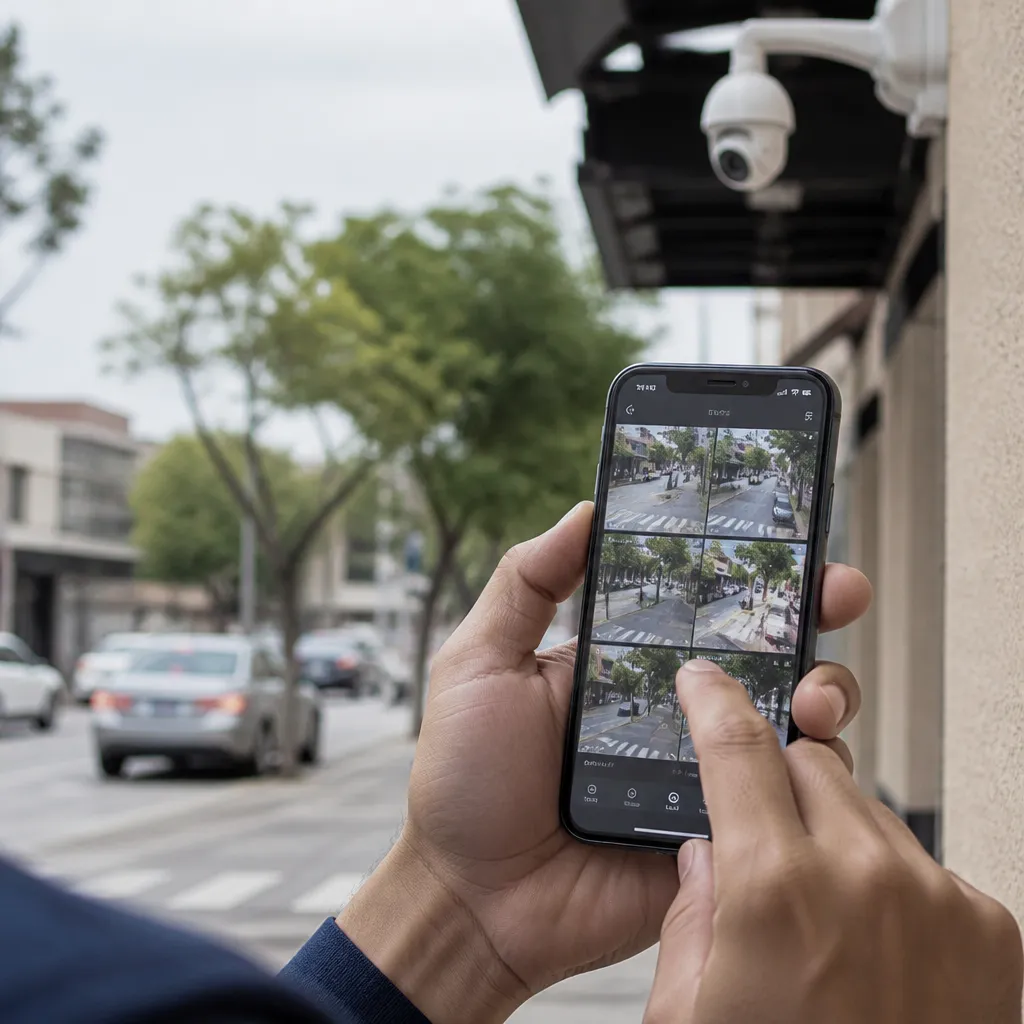
Set up motion notifications according to your routine. If you work outside during the day, turn on alerts for movements in critical areas.Over night, adjust sensitivity to avoid false positives caused by small pets or leaves swaying out the window.
Organize your cameras into groups or zones within the app. This makes it easy to view: you can have groups like “Input”, “Garden”, “Room” and quickly switch between them. Customize also the names of the cameras with clear descriptions of the location or what they monitor.
Set up backup of important recordings.If your app offers cloud storage, set appropriate retention policy.For important events, consider downloading videos for additional local storage. Test the video recovery process to ensure it works when needed.
Optimization and Maintenance Phase
Regularly review recordings to identify suspicious activity or patterns that deserve attention.Examine whether your notification settings are generating adequate amount of alerts: very few alerts indicate low sensitivity, many alerts indicate very sensitive configuration.
Update your app regularly, as developers release security improvements and new features constantly. Check update logs to understand what changes have been implemented. Some updates may change functionality location or require reconfiguration.
Periodically test remote access to the system. Check if you can access cameras when outside the home, using different types of connection (WiFi, mobile data). This ensures that the system will work when you really need to monitor remotely.
Review access permissions every six months.If someone who had access no longer works with you or has changed roles, remove their credentials immediately. Add new users only when absolutely necessary, and always with appropriate access levels to the role.
Security and Privacy: Critical Considerations
By using apps to see nearby security cameras, you expose sensitive information about your habits, location, and environment. Security should be your top priority, not a secondary consideration. Starting with strong passwords is the first step: use combinations of upper, lower case letters, numbers, and special symbols.
Enable two-factor authentication whenever the app offers this functionality. This additional process protects your account even if someone gets your password. The second factor is usually code sent via SMS or generated by dedicated authentication app, creating extra barrier against unauthorized access.
Please read the privacy policy of the application carefully before installing it. Check whether the company sells user data to third parties, shares videos with business partners, and under what circumstances authorities can access your recordings.Some jurisdictions allow security companies to share data with government agencies without notice.
Set the camera to a static IP address if possible, rather than a dynamic address that changes frequently. This reduces vulnerability windows where the camera could be inaccessible. Change the default camera password immediately after installation as well: many attacks exploit default credentials that builders leave on machines.
Consider using separate WiFi network for your security devices if your router allows you to create multiple networks. This isolates cameras from the general internet traffic of your home and prevents anyone who has gained access to your main network from compromising the cameras easily.
Regularly check which devices are connected to your camera system.Many apps allow you to view list of devices with active access. If you find access from unknown device, immediately disconnect it and change system access passwords.
Practical Tips for Better Use
You get better use of the app when you integrate the camera system with other smart devices in your home. If you use Alexa or Google Home, many camera apps connect to these assistants, allowing you to request voice viewing: “Alexa, shows the camera of the entrance on the tablet”. This integration makes monitoring more convenient and accessible.
Create automatic routines that turn cameras on or off based on specific events. For example, you can program the app to increase motion sensitivity when you leave home and decrease when you return. Some apps offer calendar integration by enabling automation based on scheduled appointments.
Use the app’s digital zoom functionality to monitor distant areas more clearly, but keep in mind that zooming can reduce image quality. If your camera offers optical (not digital) zoom, prefer this one that maintains better quality.Make sure the app allows you to save predetermined zoom positions to access them quickly.
Combine viewing from multiple cameras on a single screen when the app offers grid feature. This allows you to monitor multiple areas simultaneously without switching between feeds. Arrange the cameras on the grid by proximity or importance: critical cameras as main inputs in center position, secondary cameras in corners.
Set up continuous recording only for cameras that monitor high-risk areas. Continuous recording consumes a lot of storage and can slow down your app. For cameras in secondary areas, set up motion recording that automatically activates when it detects activity.
Share access to the app with trusted people like family or property manager, but always with limited permissions.The app should let you control who sees which camera and what actions each user can perform. Regularly review who has access and remove people who no longer need to monitor the system.
Troubleshooting: Solving Common Problems
If the app cannot connect to the camera, first check that the camera is connected to the internet and working normally. Access the camera directly through your computer’s browser using the IP address of the machine to confirm that it is responding. If the camera does not respond, restart the device and wait a few minutes for it to completely reboot.
Lag or high latency in transmission usually indicate internet connection problem, not the app. Check your connection speed using online speed test. If your internet is slow, prioritize critical cameras and disable streams from less important cameras to save bandwidth. Also consider if it is close to the WiFi router: change to 5GHz if your network offers this band.
If the app reports “Authentication Failure”, you may have entered an incorrect password or the credentials may have expired. Reset the camera password by accessing it directly from the local network or through the web interface. After resetting, update the login data in the app. If it continues to fail, make sure the camera still accepts the authentication pattern that the app is trying to use.
Notifications not arriving indicate that the app may not be receiving required permission. On your smartphone, go to the application settings of your operating system and check that the app has permission to send notifications. Also, confirm that the notifications have not been muted by “Do Not Disturb” or similar.
If the app freezes or crashes frequently, start by completely closing the app and reopening. If this does not resolve, uninstall and reinstall the app to clean up corrupted data. Before uninstalling, make note of its settings (especially camera and group names) to quickly recreate after installation.
Alternatives and Complements
If a single app does not fully meet your needs, you can combine multiple apps each focusing on different aspects. For example, use one app that specializes in motion detection for critical alerts and another for comfortable viewing with more simultaneous cameras. This strategy offers flexibility, although it requires managing multiple accounts.
Desktop software offers a larger interface and more control than mobile apps. Many camera app developers also offer versions for Windows or Mac that sync with your mobile account. If you spend a lot of time on your computer, installing desktop software complements the mobile app well.
Integrated security systems like Samsung SmartThings offer a unified platform that manages not only cameras, but also locks, alarms and other devices.If you have already invested in a specific ecosystem (Google, Amazon, Apple), using a native platform offers superior integration.
Traditional DVRs or NVRs (video recorders) with web interface complement mobile apps. These devices offer robust local storage and work even if internet goes down. For professional installations, combining NVR with remote access via app provides maximum security and redundancy.
Professional service monitoring is an option for those who want to completely outsource surveillance.Security companies maintain teams that continuously monitor cameras and trigger authorities if they detect suspicious activity. This service is more expensive but offers immediate and professional response.