Next Security Cameras App for Android Now Available
Announcements
Whether you want to monitor your home, office or any important environment by mobile, the time has come to know the best options of security camera applications for Android.Let’s explore everything you need to know to choose and configure the perfect app for your need.
Monitoring remote environments has never been more accessible and practical. With current technology, you can track security cameras installed near you through your Android smartphone, receiving real-time alerts and having full control over what happens in the places that matter. This practical guide will help you understand how these applications work and how to make the most of them.
How Security Camera Apps Work on Android
Security camera apps for Android work by connecting your smartphone directly to the cameras installed in your environment through internet networks. When you open the app on your phone, it establishes a connection to the camera system, allowing you to see the live feed from one or several points monitored simultaneously. Most of these apps use encrypted security protocols to protect your data and images.
Announcements
The technology behind these apps is quite simple in practice: the cameras transmit the video signal to the cloud or to a local server, and the application accesses this data flow in real time. Some applications allow you to record videos, take screenshots, adjust zoom and even use tilt and rotation controls on PTZ (Pan-Tilt-Zoom) cameras. You receive instant notifications whenever the system detects suspicious movement or activity, ensuring that you never miss important information.
Exploring Key Platforms and Their Resources
There are several platforms available in the Google Play Store that offer robust solutions for monitoring security cameras. Each has unique features and specific features that meet different home and commercial security needs. Knowing the options available helps you make the best choice without spending unnecessary resources.
 DeFlock.me
Age Classification:
Free Classification
Author:
TechBS
Platform:
Android
Price:
Free
▶Download on Google Play
Some platforms focus on simple home security, allowing you to monitor one or two cameras with ease through a user-friendly and intuitive interface. Other platforms offer more robust solutions, with support for multiple cameras, advanced cloud storage, artificial intelligence analysis, and cutting-edge security features.Free options often come with limitations on video storage, streaming quality, and number of cameras you can connect simultaneously.
Practical Step-by-Step Guide to Set Up Your Monitoring
The first step is to check if your security cameras are compatible with the application you choose. Most applications support IP cameras, WiFi cameras and modern CCTV systems, but it is important to check the specific documentation to avoid surprises. Write down the exact model of your camera and check for a compatibility list on the official website of the application or on the Google Play Store page.
After confirming compatibility, you will need to download the chosen application directly from the Google Play Store on your Android smartphone. Open the app store, search for the exact name of the app, and tap “Install”. Most apps weigh between 50 MB and 200 MB, so the download is fast even with slower connections. Make sure you have space available on your mobile before starting the installation process.
After installation, open the application and create an account if you do not already have one. You will need to enter a valid email and create a secure password to protect access to your monitoring system.Some applications offer two-factor authentication, an extra layer of security that you must activate immediately to protect your surveillance images from unauthorized access.
The next step is to add your cameras to the system within the application. Generally, you will have the option to scan a QR code on the camera or manually enter the connection data. Connect to the same WiFi network that your camera is using to facilitate the addition to the system. The application will automatically detect the camera and request permissions to access the video signal, which you must grant to view the live feed.
Once the camera is connected and transmitting, you can set notification and alert preferences.Customize what types of events trigger notifications (movement, sound, restricted zone entry) and adjust the sensitivity of the motion detector to avoid false alarms caused by windy leaves or pets at home.Test the system thoroughly before considering the finished configuration.
Essential Resources You Should Look For
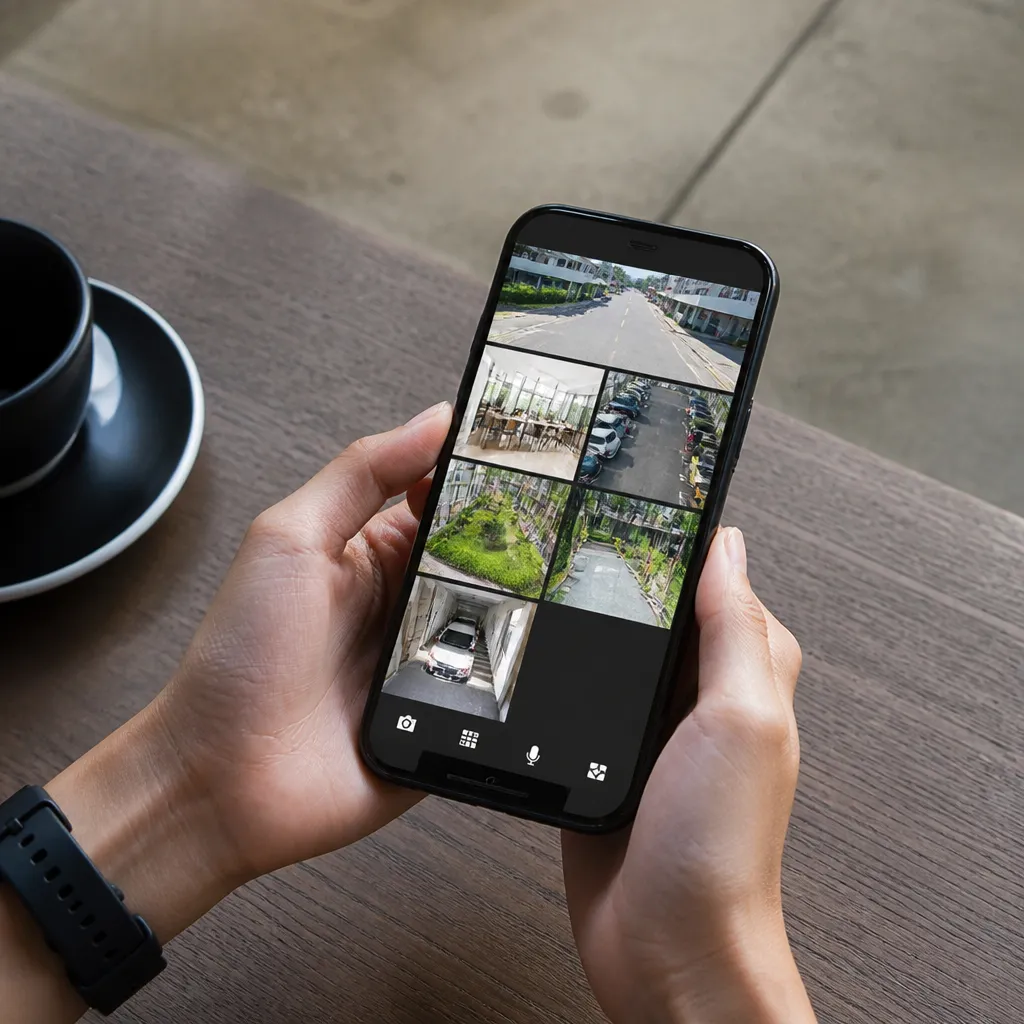
When choosing a security camera app, look for the ability to view multiple cameras simultaneously in a grid layout. This feature is critical if you plan to monitor multiple areas, allowing a complete overview of your entire space without constantly switching between individual cameras. Apps that offer different grid layouts (2×2, 3×3, etc.) provide greater flexibility as your needs grow.
Video streaming quality is another critical factor that you should carefully evaluate. Look for applications that allow automatic quality adjustment based on the speed of your internet connection, ensuring that you always have the best possible view without crashes. Apps that offer different resolutions (720p, 1080p, 4K) in real time provides full control over the data consumption of your connection.
Video recording and storage capabilities are essential for any functional security system. Check how many days the app stores videos in the cloud for free and whether you can download clips to your phone for documentation or evidence.Some apps offer subscription plans to expand storage, so compare prices if the free space does not meet your needs.
Also look for applications that allow detection of people and vehicles, functionality that uses artificial intelligence to significantly reduce false alerts. This feature is transformative for those who want to maintain safety without being constantly bothered by unnecessary notifications caused by domestic animals or weather phenomena. Intelligent detection learns patterns over time, becoming more accurate the more you use the system.
Practical Tips to Maximize Your System Efficiency
First, place your cameras in strategic positions that cover the most important areas of your property. Entrances, windows, garages, and main hallways should take priority in installation as they are the points where potential intruders would likely try to access. Test the viewing angle of each camera and adjust as needed to eliminate blind spots that could compromise the safety of your space.
Connect your cameras to a reliable power source and consider using nobreaks or backup batteries to keep the system running during power outages. Cameras that run continuously consume considerable power, so prepare for additional monthly electricity costs.Some cameras have night mode or infrared vision, features that you should check if your home or office needs 24-hour monitoring.
Keep a strong password on your app account and change it periodically for maximum security. Use complex combinations that include capital letters, numbers, and special symbols, avoiding birth dates or easy-to-guess personal information.If the app gives you the option to share access with family members or employees, use different passwords for each person and revoke access immediately when someone no longer needs it.
Regularly update the camera app and firmware to ensure you have the latest security fixes.The Google Play Store offers automatic updates if you enable this setting, keeping your system protected from known vulnerabilities.Some cameras have their own update apps that you should check monthly for security and performance improvements.
Periodically test your alarm system and notifications to ensure everything is working properly. Walk past the camera overnight to check that night vision is clear, place moving objects to test the motion detector, and simulate situations you expect the system to detect. A regularly tested system ensures that you will not have unpleasant surprises when you really need protection.
Optimizing Your Internet Connection for Monitoring
The quality of your internet connection is critical to the smooth operation of the security camera app on your Android. A slow or unstable connection will result in crashed videos, delays in alert notifications and inability to access the live feed when you need it most. Before installing any camera system, test your internet speed using free speed test apps and ensure that you have at least 5 Mbps of upload for comfortable streaming.
If you plan to monitor multiple cameras simultaneously, your bandwidth need increases significantly. Each 1080p camera in high quality consumes approximately 2-3 Mbps of connection, so if you have 3 cameras, you will need at least 9 Mbps available constantly. Consider talking to your internet provider if your current connection is not enough, or reduce the streaming quality in periods you are not actively monitoring.
To improve the stability of your connection, position your WiFi router in a central, elevated location in your home away from obstacles and interference. Cameras connected via WiFi should be within a reasonable distance of the router to maintain strong signal, usually within 50 meters in open environments. If your cameras will be distant, consider using WiFi repeaters or installing additional access points to ensure complete coverage of your property.
Security and Privacy: Protecting Your Data
Your security doesn’t just end with installing the app and cameras. You need to be constantly aware of the privacy and security risks that come with internet-connected surveillance systems.Hackers often try to access security cameras to get information about home routines when you’re away, and details about your property that enable intrusions. Protecting your system is just as important as installing the right hardware.
Always use WiFi networks with security enabled (WPA3 or WPA2) instead of open networks, even if it seems more convenient to connect without password.Your WiFi network is the gateway for any hacker to try to access your cameras and other connected devices, so a strong password is your first line of defense. Change your router’s default password immediately after installation, as many routers come with default passwords that anyone connected to the internet can easily discover.
Disable unnecessary functionality on your cameras, such as access to friends or public sharing of video streams.Each added feature is a potential entry point for attacks, so keep only what you really need active.If you need to share access with family members, use specific invitations and granular permissions instead of sharing a single password with multiple people.
Periodically review accesses and devices that are allowed to see your cameras within the app. Most apps offer a panel of recent activities showing who accessed the system and when, valuable information to detect unauthorized access. Disconnect any device that you do not recognize or should no longer have access to, and consider changing your password if you suspect suspicious activity.
Use a VPN (Virtual Private Network) if you regularly access your cameras from public networks such as WiFi from cafes or hotels. A VPN encrypts your entire internet connection, preventing someone on the same public network from intercepting the video stream from your cameras.Many VPNs are offered for free or with affordable subscription, providing additional protection that is worth it for the security of your home system.
Solving Common Connection and Access Issues
If you can’t view the live feed of the cameras in the app, the first step is to check if the camera is on and connected to the same WiFi network as your smartphone. Restart both the camera and your router, waiting a few minutes between the reboots so that all devices connect correctly. Many connection problems are solved simply with a restart, avoiding unnecessary calls to technical support.
If the problem persists, open the camera settings in the app and look for the option to “Reconnect” or “Re-add device”. This process makes the app fetch the camera again on the network, redoing the connection from the beginning. Keep your app and camera firmware updated, as old versions sometimes have incompatibilities that cause viewing or notification problems.
If you get a lot of fake motion notifications, adjust the detector sensitivity within the application settings. Gradually reduce the sensitivity and test again by finding the break-even point where you detect real movements but not alarms caused by leaves, shadows or rain.Some applications offer custom detection zones, allowing you to enable detection only in specific areas of the camera, powerful feature to eliminate unnecessary alerts.
Latency (delay) issues in live video often indicate a lack of bandwidth or weak WiFi signal in the camera. Test your internet speed, bring the camera closer to the router, or install a WiFi repeater to strengthen the signal. Reduce streaming quality to a lower level if the delay continues, accepting lower quality in exchange for reduced latency and smoother viewing.
Leveraging Advanced Features for Complete Security
Many apps offer face detection features that allow you to create lists of recognized people that your camera can automatically identify. This feature is especially useful for differentiating between family, friends who may visit, and unknown strangers. When the system detects an unknown face, you receive a differentiated notification specifically alerting you to the presence of an unrecognized person on your property.
Scheduling features let you set specific times for when you want cameras to record continuously or only when they detect movement. If you leave home daily between 9am and 6pm, you can set the system to record continuously during that time, saving overnight storage when you are at home.
Some apps allow you to create locked access zones that trigger alerts if someone enters a specific area, such as your garage or balcony. This feature is powerful for receiving immediate notifications of attempted intrusions into critical areas, even before someone arrives at the main door. Combine locked access zones with smart people detectors for maximum security and minimal fake notifications.
Two-way communication features allow you to speak through cameras that have built-in microphone, creating an effective intercom between you and anyone in front of the camera. If a stranger rings your doorbell while you are away, you can talk to that person as if you were at home, potentially preventing break-ins or receiving important information. This feature is excellent for improving security while providing additional convenience for communicating with people on your property.
Integrating Your System with Other Smart Devices
Many security camera systems can be integrated with other smart home devices such as smart locks, lighting and video doorbells.When a camera detects motion at night, it can automatically activate the outside lights, creating a deterrent effect that often wards off potential intruders.This automation not only increases security, but also provides additional convenience when arriving home at night.
Integrations with voice assistants like Google Assistant let you control your cameras through spoken commands, an especially useful convenience if your hands are busy. You can ask to see the front door camera, review recent recordings, or receive a summary of day activities by simply talking to your voice assistant. Check the specific compatibility with your voice assistant before assuming the integration will work.
More advanced home automation systems allow you to create scenarios that combine multiple devices triggered by camera events. For example, if the camera detects motion after midnight, it can automatically increase outdoor lighting, activate the security audio system, send alerts to your phone, and even turn off the TV. These automations create an integrated response to security events that offers much more effective protection than any isolated device could provide.
Integrate your cameras with cloud storage systems for automatic backup of important videos.Some applications automatically synchronize motion detected clips with cloud services, ensuring you have protected backups of security evidence.This automatic backup is crucial if someone manages to destroy local recordings during an intrusion, as you would still have cloud records to pass to the police.
Keeping Your System Up-to-Date and Functional for the Long Term
Calendarze monthly checks of your camera system to ensure everything keeps working smoothly. Review recent notifications to verify that the system is detecting activity properly, test remote access from different locations, and confirm that recordings are being stored as expected. A quick 15-minute check monthly can prevent issues that could compromise your security without you even realizing it.
Monitor available cloud storage and upgrade your plan if you are approaching the limit.Most apps offer alerts when you are using above 90% of the space, perfect time to assess whether you need more storage or can maintain the current plan by adjusting retention settings.Some apps automatically delete old videos when space is full, potentially missing important evidence you could need.
Keep records of passwords, camera IDs, subscription information, and support contacts in a secure location that you can easily access.If you need to reinstall the app, switch phones, or recover your account, having this information documented will make the process much faster.
Cancel subscriptions you are no longer using and regularly review plans you have contracted. Many apps add service fees you may not have noticed, especially after free trial periods.A quarterly review of your subscriptions and costs associated with the camera system ensures that you are not wasting money on features you do not use.