How the App Works to Watch TV Online Free
Announcements
There are different ways to watch TV online without paying anything, and specialized applications make this access a lot easier. You can find platforms that offer open content, live channels and even on-demand productions, all within a single app.
This handy guide shows you how these apps work, what their main features are, and how you can start using them safely and intuitively.We’ll explore from downloading to the first broadcasts, going through tips that make all the difference in the experience.
What is an App to Watch TV Online Free
A free online TV app acts as a television content aggregator, bringing together channels, programs and real-time broadcasts in one place. The app acts as an intermediary between you and the broadcast signal, offering a user-friendly interface to navigate between different channels and times. Unlike paying for subscriptions, these apps bring content open or licensed for free by their developers.
Announcements
Most of these apps operate through partnerships with television networks, public agencies or platforms that offer viewing rights at no additional cost. You receive the already organized schedule, with schedules, synopses and personalized recommendations as you interact with the application.
Step by Step: How to Start from Zero
The first step is to identify which application you want to use. There are options such as TuneIn, which offers radio and TV from several countries, or national platforms that focus on Brazilian channels. Access the app store of your device, whether Google Play or App Store, and search for the name of the app you chose.
After finding the application, tap “Install” or “Get” and wait for the download to complete. The size usually varies between 50 MB and 200 MB depending on the platform. When the installation is finished, the button changes to “Open”, and you can already start the application for the first time without having to create account in many cases.
Inside the app, look for the channels or live programming section. Most feature a home menu with categories like “Highlights”, “Recommended Channels” or “Programming”. Select a channel or program that interests you and click on “Play”. The app loads the streaming in a matter of seconds, and you already start watching in real time.
Main Features Available
Most free TV apps offer electronic programming guide, also known as EPG, which shows which program is running on each channel and which will come next. This tool is essential for you to plan your viewing time and not miss your favorite shows.
Another common feature is the possibility to favorit channels or create a personalized list. With this, you do not need to browse through hundreds of channels every time you open the app; just access your favorites list and find exactly what you want to watch. Many applications also allow you to continue watching from where you left off, synchronizing progress between devices.
Some apps integrate keyword searches, allowing you to search for a specific program, actor, or genre. This feature saves you time and helps you discover new content that aligns with your interests.The personalized recommendation feature works by recording your choices and suggesting similar programs.
Technical Requirements and Compatibility
To use an online TV app, you need a device with at least Android 5.0 or iOS 11, depending on the app. Most modern smartphones and tablets meet these requirements without problems. If you have an older device, check before installing to ensure compatibility.
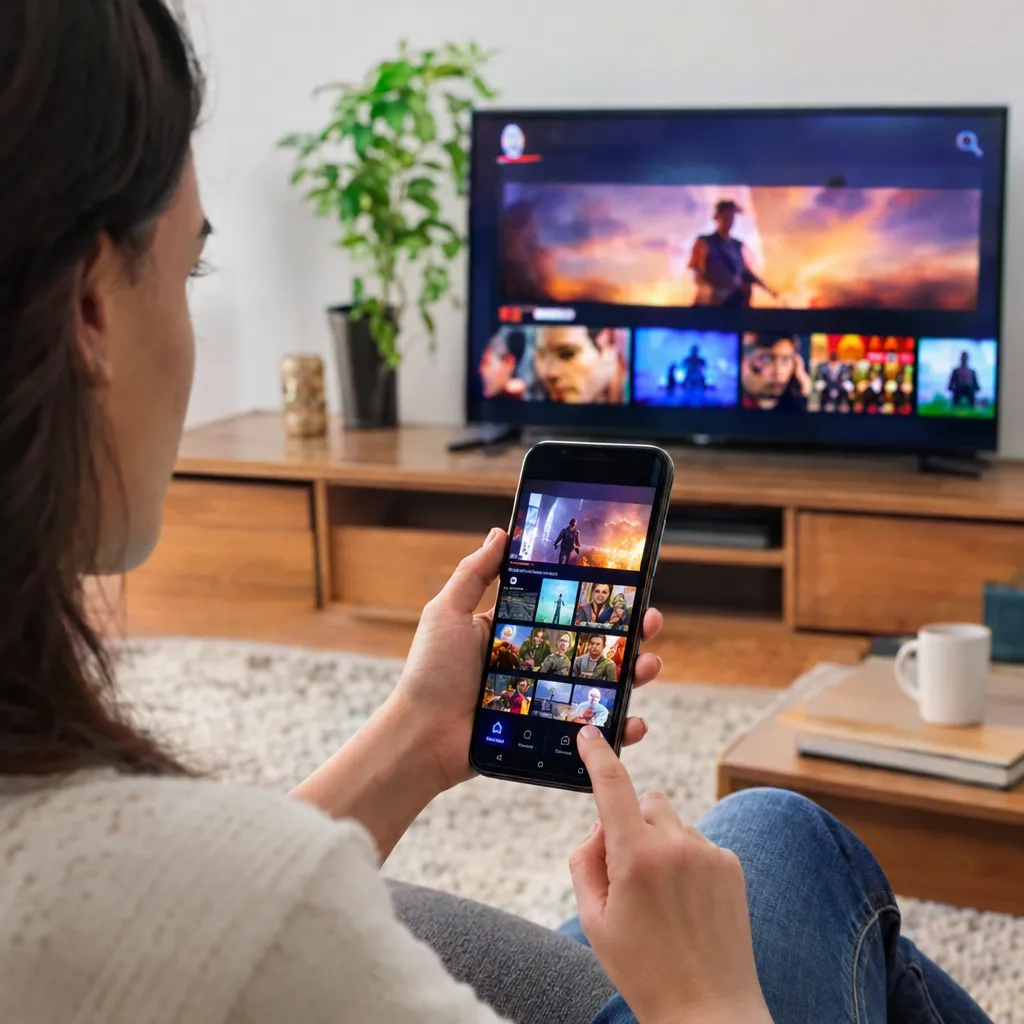
A stable internet connection is critical. A minimum of 5 Mbps of speed is recommended for streaming in standard quality and 25 Mbps or more for HD. You can use Wi-Fi or mobile data, but Wi-Fi is preferable to avoid excessive data packet consumption. If your internet is unstable, the application may experience frequent buffering or cuts in transmission.
Device storage also matters. Reserve at least 500 MB free to install the app and leave room for temporary streaming cache. Devices with very little available space may experience crashes or errors during playback.
Real Scenarios: How You Can Use
Imagine that you are a person who works all day and wants to follow the evening news.You open the app during lunch, check the EPG, find the time of your favorite news and activate a notification. When the program starts, you receive a warning and can watch in real time or later, depending on how many features the app offers.
Another common scenario is when you are at home with family on weekends and want something entertained to watch. You open the app, explore categories such as “Movies” or “Entertainment”, select a program and put on TV via casting or connect the smartphone to the screen. All sitting on the couch, no subscription costs, enjoying the content together.
A self-employed professional who travels constantly also benefits greatly.He takes his smartphone or tablet in his backpack, connects to the hotel or coworking internet network, and continues to follow his favorite programs from anywhere in the world. The app automatically syncs where he left off, offering continuity.
Parents with young children often use these apps to access child channels without paying for a subscription. Children watch educational drawings and programs while parents monitor content through the indicative rating displayed in the app. Many parents take advantage of the programming guide to choose appropriate times.
Practical Tips to Improve Your Experience
Always make sure the app has internet permissions enabled in your device settings. If streaming doesn’t work, this is often the main cause. Go to Settings > Apps > [nome do app] > Permissions and ensure that “Internet” is active.
Clear the app cache periodically to avoid performance issues. Open Settings, search for “Cache Storage” or “Application Manager”, locate the TV app, and tap “Clear Cache”. This frees up space and often resolves crashes or freezes.
Use quality headphones if you want to get more out of your audio. Many apps offer stereo or even surround sound, and good headphones capture that quality much better than your smartphone’s built-in speakers. For group sessions, connect your device to a Bluetooth speaker box.
Adjust video quality settings to suit your internet connection. If you notice frequent buffering, reduce the quality from 1080p to 720p. The app usually detects the speed of your connection and adjusts automatically, but you can also do this manually through the settings.