Change Your Phone Theme in Few Clicks
Announcements
Changing the theme of your Android phone is simpler than you think and can completely transform the look of your device. With just a few clicks, you can customize colors, icons, fonts and even the entire interface of your smartphone, making it unique and aligned with your visual preferences.
When you modify your phone theme, you are not only changing the background color of the screen: you are creating a completely different visual experience that affects every interaction with your device. Since Android 12, manufacturers and app developers have offered more and more native customization options, allowing you to customize virtually everything without needing advanced technical knowledge.
Understanding Types of Available Themes
There are several categories of themes you can apply to your Android phone, each offering different levels of customization. The system’s native themes come pre-installed and allow for quick changes, while third-party themes unlock much broader possibilities for customization. Understanding these differences helps you choose the ideal option for your needs.
Announcements
Native themes include the light and dark mode that virtually all modern Android phones have. Dark mode reduces eye strain in low-light environments and saves battery on AMOLED screens, as black pixels of not emit light. You can activate this mode by going to Settings, looking for “Display” or “screen” and selecting the dark theme as default or leaving set to automatically change according to the time of day.
In addition, many manufacturers like Samsung, Motorola and Xiaomi include additional theme packs in their own theme manager.These themes are officially recognized by the brand of your mobile and ensure full compatibility with the system.Samsung, for example, offers an application called “Theme”, where you find dozens of free and paid options with different visual styles.
 Kroma: Colorful Keyboard
Classification:
”’I think it’S.
4.50
Age Classification:
Free Classification
Author:
Diced, Inc
Platform:
Android
Price:
Free
▶Download on Google Play
Using Specialized Theme Applications
If you want much more variety and total control over the appearance of your phone, specialized apps themes are the best choice. These platforms work as virtual stores where you find thousands of themes created by developers and designers around the world. Each theme can completely change the look of icons, system colors, fonts and even the appearance of the keyboard.
One of the most popular apps for customization is KWGT, which allows you to add custom and dynamic widgets to your home screen. You can create unique combinations of themes and widgets that express your personality. Another widely used app is Zedge, which offers a huge collection of themes, wallpapers and notification sounds that you can download and apply instantly.
Launcher 3 and Nova Launcher are customizable launchers that work as the main interface of your Android, allowing you to customize absolutely everything on the home screen. With these applications, you can exchange icons, rearrange the layout, add animation effects and even change the design of folders and applications. This flexibility makes you have full control over how your phone looks and works.
Customizing Through Native Settings
Your Android phone already comes equipped with several native customization options that you can access without downloading anything. These settings are scattered throughout the Settings menu and allow significant changes in appearance without compromising the security or performance of the device.
Start by going to Settings and looking for the “Screen” or “Display” There you will find options to adjust the brightness, contrast and activate dark mode. Many phones also have an option called “Colors” or “Colors” or “Colors” or “color scheme” that lets you choose between different color palettes that will be applied through the operation system. These palettes usually include blue, red, green tones and even customs.
The second place to explore is the “Sources” section within Display, where you can change the default typography of the system. Different sources completely change the visual tone of your phone: more modern sources make the device more contemporary, while classic sources convey elegance and sophistication.Some brands even allow you to download additional sources from their services in the cloud.
Do not forget to also access the “Wallpaper and style” settings that you find usually inside Display or sometimes in a separate section of Customization.This option allows you to choose static, dynamic or even video wallpapers, as well as automatically adjust systems colors based on the changed wallpaper.Many modern Android includes a smart feature that extracts the dominant colors from your wall and appliances them as the rest of the color for the palette interface.
Customizing Lock Screen and Home Screen
The lock screen and home screen are the two areas you see most on your phone, so customizing them is essential to create a satisfying visual experience. Fortunately, Android offers many ways to customize these two elements without the need for complex tools or advanced technical knowledge.
To customize the lock screen, go to Settings, search for “Screen Lock” and select “Lock screen wallpaper”. You can choose from wallpapers already installed on your mobile or upload photos of yourself. Some brands also allow you to add information on the lock screen like time, date, weather and notifications, creating a more informative and personalized look.
The home screen is where you have even more freedom of creation. Long press on an empty area of the home screen and select “Wallpapers” or “Widgets” depending on what you want to do. Widgets are small applications that you put on the home screen and that can show real-time information such as weather forecast, calendar, or music controls. By arranging widgets strategically along with carefully arranged app icons, you create a unique and functional home screen.
Using Custom Icons and Icon Packs
Changing the look of your app icons is one of the most visible and satisfying changes you can make. An icon pack is a set of custom icons that replace the originals of your apps, creating a visual cohesion across the home screen. You can find hundreds of packs with different styles: minimalist, colorful, geometric, 3D or themed.
To use icon packs, you first need to install a launcher that supports this functionality, such as Nova Launcher or POCO Launcher. Then download an icon pack through applications such as Zedge or directly from the Play Store looking for “icon pack”. After installing the pack, open the launcher, go to the settings and look for the “ Style or “Icons” to apply the pack you downloaded.
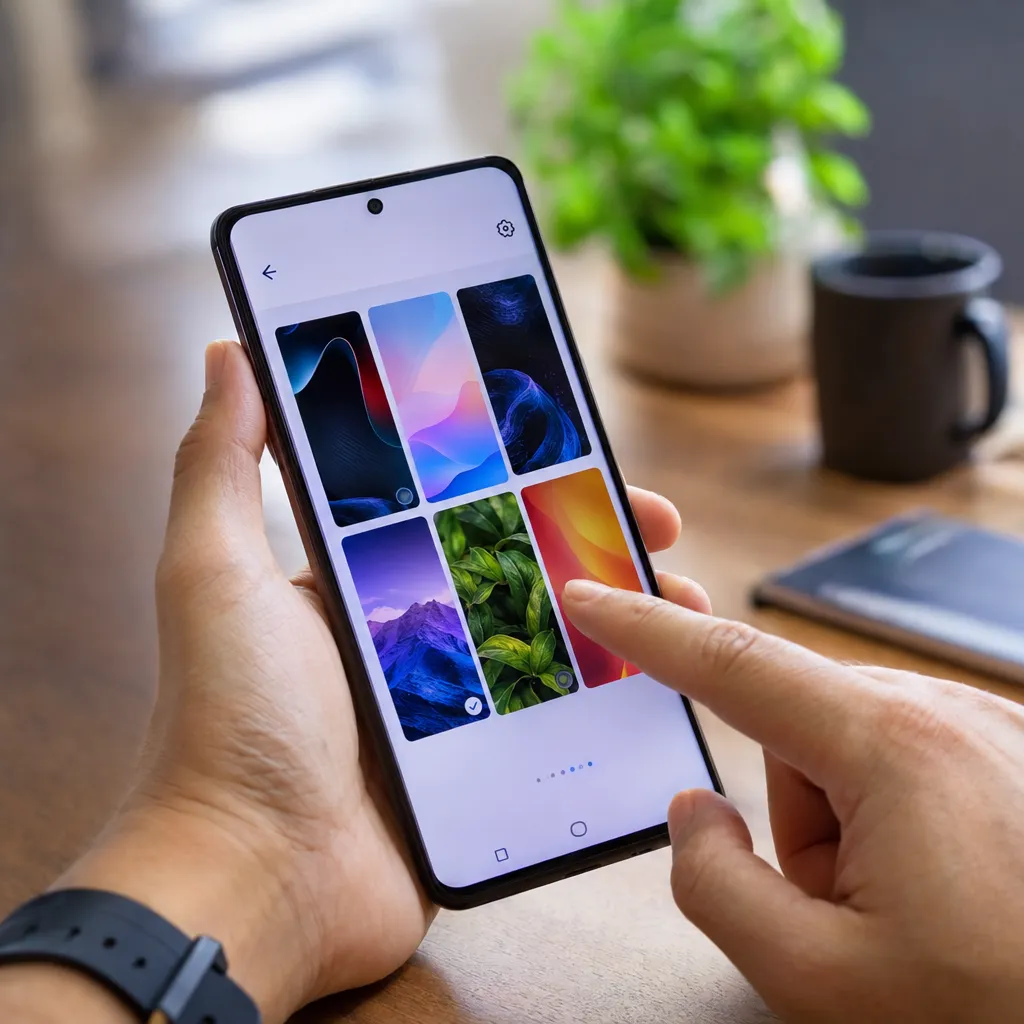
The visual result is impressive: all your applications gain a coherent and professional appearance that reflects your personal taste. If you prefer a clean and minimalist look, there are packs with simple icons in gray tones. If you like vibrant colors, you find packs with colorful and cheerful icons. This icon customization is so effective that many people create several different home screens, and with a differentiating between the two sides, alternating between them.
Adjusting Colors, Brightness and Contrast
In addition to the full theme options, you can make fine adjustments to the colors and brightness of your phone that affect how the entire interface is displayed. These adjustments are especially important if you spend many hours on your device, as they directly affect the comfort of your eyes and battery life. Android offers several national tools for these adjustments without the need for additional applications.
The blue light filter, found in Settings > Display > Night light or similar, reduces the amount of blue light emitted by the screen at night. This reduction decreases eye strain and helps you sleep better if you use your phone before bed.
Color saturation can also be adjusted on many modern phones. If you find the colors too vibrant or too faint, look for “Colors” or “Saturation” in Display. There you find options to increase or decrease the vividness of the colors, or even change to gray scale completely if desired. Contrast can also be adjusted on some devices to facilitate readability.
Exploring Dynamic and Adaptive Themes
Starting with Android 12, Google introduced dynamic themes, also called adaptive themes, which automatically extract colors from your wallpaper and apply them throughout the operating system. This feature has revolutionized the way people customize their phones, because now the change of a simple wallpaper changes the entire color palette of the interface intelligently and harmoniously. If your phone has Android 12 or higher, you probably already have access to this functionality.
To enable dynamic themes, go to Settings > Display > Color or Settings > Customization > Color and style. You will see an option for “Dynamic theme” or “Adapted colors from wallpaper”. Turn on this option and Android will automatically analyze the wallpaper you have chosen and create a color palette that matches it. Changing the wallpaper automatically changes the entire system palette, creating different themes without you doing practically anything.
This approach offers a much more coherent and sophisticated visual experience compared to static themes. A wallpaper with warm tones will result in icons and interface elements also in warm tones, creating a visual harmony that you probably would not even be able to replicate manually. Experimenting with different wallpapers is much more rewarding when you know that the entire system will adapt visually.
Important Performance and Security Considerations
Although customizing your phone is fun and safe when done correctly, you need to take some care not to compromise the performance or security of your device. Installing many theme apps at the same time, especially from unknown developers, can slow your phone down and consume a lot of RAM. It is important to be selective and install only apps from reliable sources with good reviews in the Play Store.
When downloading third-party theme apps, always check the number of downloads, user ratings, and comments before installing. If a theme app has fewer than 100 thousand downloads or many negative comments about slowness, it is best to avoid. Always prefer popular and well-rated apps that you recognize as established brands or developers with a proven track record.
Also beware of applications that ask for excessive permissions to function as a theme. A legitimate theme application does not need to access your contacts, messages, location or camera. If an application asks for strange permissions, be wary and do not install it. After installing a theme, if you notice that your phone has become significantly slower, do not hesitate to uninstall the application to regain performance.
Also, some alternative themes may not be fully compatible with certain apps or features on your phone, especially if you use an alternative launcher.If after a theme change you notice that certain apps do not work properly or have disappeared from your home screen, usually uninstalling the problematic launcher or reverting to the default launcher solves the issue.
Practical Results and Visual Transformation
When you implement a complete strategy of personalization of your Android phone, the results are remarkable and immediate. Changing only the wallpaper already creates a sense of novelty, but when you combine this with a coordinated icon pack, adjust the system colors, rearrange the home screen with strategic widgets and apply a coherent theme, the result is a device that looks completely new. This visual impact directly affects how you feel when using your mobile phone daily.
Users who have implemented these changes report that they feel much more connected and satisfied with their devices. A highly personalized mobile phone creates a more intuitive experience because it is organized exactly as you prefer, with icons that you quickly recognize and colors that you like to see. In addition to the aesthetic aspect, this customization also functional: widgets on the home screen show important information without having to open applications, saving time.
The satisfaction of having a unique mobile phone that reflects your personality should not be underestimated. While your friends use phones with monotonous pattern theme, you have a device that is an extension of your taste and style. This visual difference is in every interaction: when unlocking the mobile, when opening the application gallery, when receiving a notification. A well-chosen theme improves your overall experience with the device.
In addition, if you use well-implemented dark themes, it saves battery on mobile phones with AMOLED or OLED screens. The dark theme reduces power consumption because black pixels do not emit light in these screen technologies. Users who have completely adopted dark mode with a compatible theme report real gains in battery life, especially if they use their mobile phone a lot during the day in well-lit environments where the maximum brightness is activated.
The possibility to create different themes for different times of the day is also an interesting practical benefit. You can have a vibrant and colorful theme for use during the day and a minimalist dark theme for the night. Switching between them takes only a few seconds and adapts your mobile to different contexts and moods. This flexibility is part of the reason why customizing your Android is so popular among users who really want to extract the maximum potential from their devices.