IOS Parental Control: Protect Your Child
Announcements
Parental control on iOS is an essential tool to protect children and teens while using Apple devices.You can limit inappropriate content, track usage time, and monitor activities accurately.
Announcements
Most parents face real challenges balancing digital freedom with security, so this article presents practical scenarios for how to implement parental control on iPhone and iPad, showing concrete use cases that you can adapt to your family reality.
How Parental Control Works on iOS
IOS offers an integrated parental control system called Screen Time, which works directly on device settings. You access this feature in Settings, then Screen Time, and set custom limits for each family member. The system allows you to establish availability times, block specific apps, and restrict certain types of content without relying on third-party apps.
Unlike other platforms, iOS integrates parental control into the operating system itself, which means that restrictions work at a deep level and are harder to work around. You set a 4-digit password (PIN) and also link your Apple ID account, creating an extra layer of security. Any change in control settings requires this authentication, preventing the child from deactivating the feature easily.
Basic Parental Control Configuration
To get started, you need to go to the child’s iPhone or iPad Settings and tap “Screen Time”. The first time, the system offers two options: set Screen Time for your device or for a family device. Choose the second option if you are setting up for your child. iOS then asks you to create an access code, which will be different from the normal unlock code of the device.
 Dual Chat Web QR Scanner
Classification:
^^^^^^^^^^^^^^^^^^^^^^^”’
4.33
Age Classification:
Free Classification
Author:
G.K.Apps Studio
Platform:
Android
Price:
Free
▶Download on Google Play
Dual Chat Web QR Scanner
Classification:
^^^^^^^^^^^^^^^^^^^^^^^”’
4.33
Age Classification:
Free Classification
Author:
G.K.Apps Studio
Platform:
Android
Price:
Free
▶Download on Google Play
After creating the Screen Time code, you set up the child’s Apple ID on the device (or link to Shared Family). This allows you to manage the restrictions remotely from your own iPhone, iPad or Mac. Once set up, you can set daily usage limits by category of apps such as Social Networks, Games, Entertainment and Productivity. You also set rest times, during which only calls and messages are allowed.
Limiting Inappropriate Content with Restrictions
Within Screen Time, there is a section called “Content and Privacy” that allows you to restrict apps based on age rating. You can prevent the device from installing apps rated 12+, 16+, or 18+ by automatically blocking any download attempts without your approval. This restriction also applies to in-app purchases, such as game currencies or digital content.
You can also disable iOS-specific features such as Safari (browser), camera, Siri and Siri search, Health Apps, and data. To block explicit web content, enable the “Restricted web content” option and choose between allowing only approved adult sites or creating a custom list of blocked sites.
Usage Time Monitoring in Real Scenarios
A common scenario is when your child is 10 years old and spends a lot of time on mobile games after school. You set a daily limit of 2 hours for the “Games” category in Screen Time. When you reach the limit, the app is disabled until the next day, but still allows him to access the camera or schedule tasks. If he needs more time (for example, playing with friends on the weekend), you can allow extra time remotely from your device, without having to touch his iPhone.
Another real case is the 14-year-old who uses Instagram and TikTok constantly. You set a 21h rest time at 7am, a period when only calls and messages are allowed. At this interval, social networking applications are blocked, ensuring that he sleeps without distractions. If he needs to use his mobile phone during the night for emergency contact, he can make calls, but does not access social apps.
Remote Management via Shared Family
The Shared Family feature of iOS allows you to set up and monitor parental control remotely, without being near the child’s device. You can view how much time your daughter spent on each app, which apps she tried to install (and was blocked), and receive notifications when she reaches time limits. This is especially useful when the child is at school or at a friend’s house.
To enable this, both devices (your and your child’s) need to be in the same Family shared via iCloud. Setup can be done quickly during the first iPad setup, or you can add the child to your existing family through Settings. Once activated, you manage everything from your own iPhone, receiving alerts and being able to make adjustments without the child having access to your device.
Blocking Specific Applications and Approving Downloads
There are apps you may want to block completely, such as alternative browsers, encrypted messaging apps, or non-child video platforms. To do this, open the app on the child’s device home screen and tap it at length until a menu appears. Select “Remove app” and if Screen Time is enabled, the system asks for confirmation. You can then use the Content and Privacy option to prevent the app from being reinstalled.
Another approach is to enable “Download and purchase approval” in Screen Time.This means that every time your child tries to install a new app, a notification is sent to your iPhone asking for approval. You can quickly accept or reject, and the app is installed or locked in seconds. This strategy works especially well with children from 8 to 12 years, creating a layer of control without being overly restrictive.
Privacy and Communication Restrictions
Within Content and Privacy, you find options to restrict who can contact your child via calls, messages and video calls. A practical scenario is a 7-year-old who receives an iPad to use at school: you activate “Authorized contacts” and add only the mobile number of parents and grandparents. Thus, the device only accepts contacts of these people, preventing them from receiving calls or messages from strangers.
For teens, you can be more flexible by allowing contacts from all contact calendar, but blocking specific communication apps or enabling restrictions for group messages. These settings are under “Allowed Communications” and “Restricted Communications”. You can also prevent the child from adding or editing contacts, and disable AirDrop to avoid sharing unknown files via Bluetooth.
Camera, Location and Motion Sensor Privacy Settings
Screen Time also lets you manage iOS privacy permissions such as camera access, microphone, location, and contact access. If your daughter uses an app that shouldn’t have camera access (such as a game), you can revoke it in Privacy settings. This prevents the app from accessing sensitive data, reducing security and privacy risks.
For location, you can restrict certain apps to use only approximate location instead of exact accuracy. If your child has an iPhone 12 or newer with LiDAR, you can also disable access to the motion sensor in the apps. These granular restrictions prevent apps from tracking the exact location of the child without your permission, something parents with older children should seriously consider.
Rest Hours and Focus Mode
Screen Time on iOS allows you to set up automatic rest times, during which the device works on a gray scale and only favorite calls and contacts are allowed. You set the start time (for example, 21h) and end time (7h), and iOS automatically activates these restrictions every day. If your child tries to use the device while resting, a warning screen appears, and he may ask for more time (which comes to you for approval) or return to the home screen.
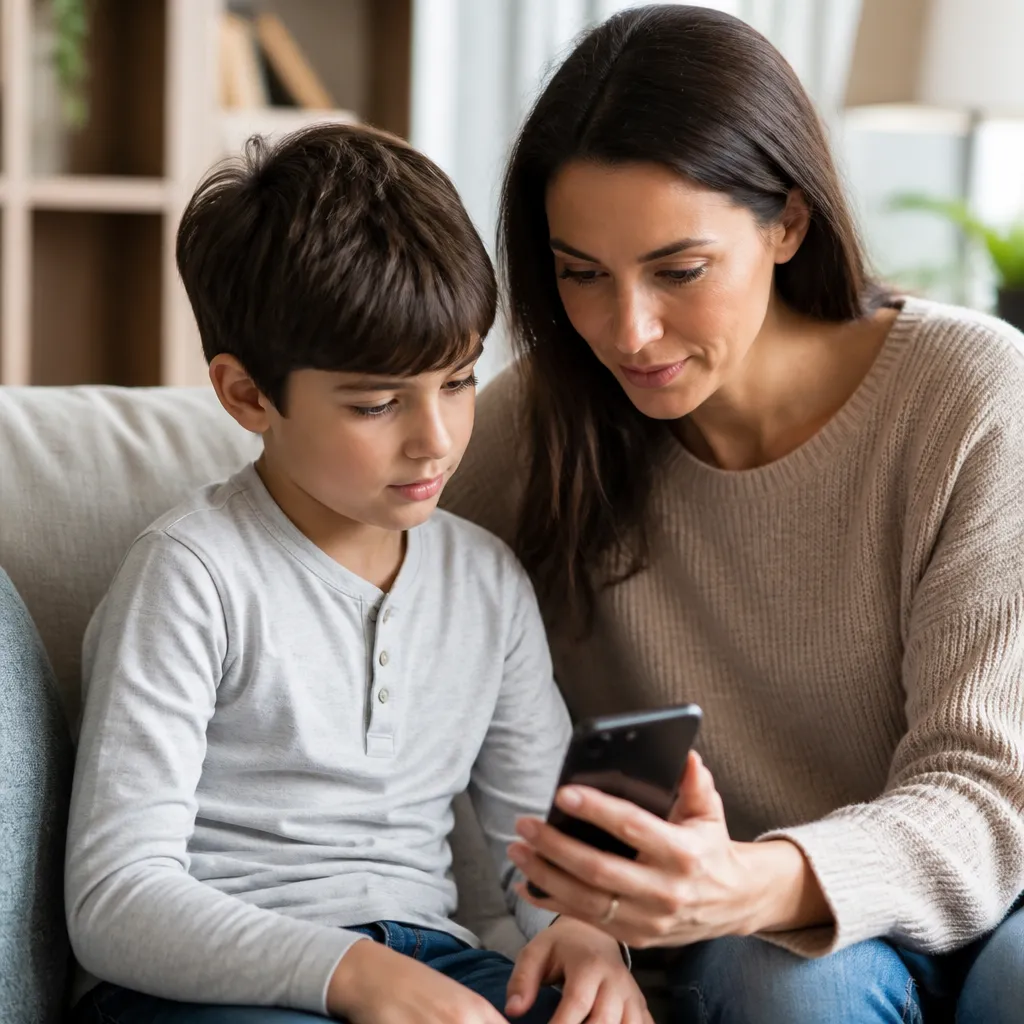
A real use case is a teenager who has difficulty turning off his iPhone before bed. You activate 22h rest at 6am, and during this period, the device only works with calls and messages. If he wakes up at night and tries to use Instagram, the app is not available. In the morning, the rest time automatically ends, and all apps come back to work. This eliminates fights about “plus 5 minutes” and establishes clear limits.
Application Categories and Flexible Time Limits
Screen Time groups apps into categories like Social Networks, Games, Entertainment, Productivity and Creativity. You set different daily limits for each category: maybe 1 hour for Games, 2 hours for Social Networks and unlimited for Education. Some apps allow the child to request more time when they reach the limit, and this request arrives for you to approve in real time.
A practical strategy is to allow higher limit on weekends: you set 1 hour limit of games during the week, but on Saturdays and Sundays can increase to 3 hours. This flexibility recognizes that children need fun and social interaction, while maintaining limits during school days. IOS allows you to make these changes remotely from your device, without the need for physical access to the child’s iPhone.
Skirting Parental Control: Risks and Preparation
Older children and teens often find ways around limitations. One of them is to restore the device to factory settings, which erases the Screen Time code if iCloud is not synced.To avoid this, you enable “My Approved” and link the Apple ID account, so that even after restoration, iOS requires authentication with your account to set up the device again.
Another common attempt is to connect iPhone to a computer with iTunes/Finder and sync restricted content.To prevent, you disable the “USB Accessories” option under Content and Privacy, requiring device unlock to connect USB accessories.This additional layer of security makes it much harder to circumvent restrictions using only technology.
Gradual Transition of Control As Child Grows
An important point is that parental control should not be static. As your child grows, you should review and adjust the restrictions regularly. An 8-year-old may need strict restrictions, but a 16-year-old benefits from more autonomy to learn digital responsibility. You can start by reducing time limits, removing locks from specific apps, and allowing more control over privacy settings.
A realistic scenario is that at 12, your daughter receives an iPhone with strict restrictions: 21h rest time at 7am, 1 hour limit for social networks, Safari lock. At 14 years old, you reduce to 22h rest at 7am, increase social networks to 2 hours and enable Safari with restricted content. At 16, you disable Screen Time completely, but regular conversations about safety and online behavior continue. This progression recognizes that children grow up and need freedom gradually.
Integrations with Third Party Monitoring Apps
While Screen Time is robust, some families choose to supplement with monitoring apps available in the third-party App Store. These apps offer features like real-time location tracking, text message monitoring (with legal and ethical restrictions), and detailed digital activity reports.
A practical example is a parent who wants to know exactly where their 13-year-old is during the commute from school to home. He can use a third-party location app (different options are available on the App Store) that shows the real-time GPS position on the map. Combined with Screen Time (which controls apps and time), this hybrid approach offers additional security without being overly invasive.
Parental Control Configuration in Family Shared with Multiple Children
If you have more than one child, iOS allows you to create a Shared Family with up to 6 members, and you can set up different Screen Time for each child based on their age and maturity. A common approach is to apply stricter restrictions to the younger and progressively less severe restrictions for older children. Management is centralized in one place, allowing you to quickly see the use of each child and make adjustments as needed.
Real scenario: you have three children aged 7, 12 and 15 years. The 7-year-old has iPad with 20h rest at 6h, limit of 30 minutes of various apps, without Safari. The 12-year-old has 21h rest at 7h, limit of 2 hours for Social Networks and 1 hour for Games, Safari with filter. The 15-year-old has 22h rest at 7h, no limit of educational apps, limit of 2 hours for other. You view everything on a screen on your iPhone and approve apps extra time as you arrive.
Documentation and Compliance with Child Protection Laws
It is important to note that laws from different countries regulate what you can and cannot do when monitoring underage devices. In most jurisdictions, parents have a legal right to supervise devices that pay and provide to their children, but there are legal limits in some places, especially as children age. You should be familiar with local regulations, such as the LGPD in Brazil, which sets rules on collecting data from minors.
Documenting your parental control policies is also helpful. Some parents prefer to make it clear to their child that the device is subject to monitoring, what the purpose is, and what the level of privacy is expected. This transparency builds trust and sets expectations, making parental control a digital education tool, not just restriction. An honest conversation about why you are implementing these measures (protection, security, accountability) often results in less resistance.
Troubleshooting and Common Problems with Parental Control
A frequent problem is when the Screen Time code is forgotten. Unfortunately, iOS does not offer an easy way to recover this code if you forget it. The solution is to restore the device to factory settings (which erases all content) or contact Apple support for property verification. To avoid this scenario, store your Screen Time code in a safe place, such as password manager, separate from other data.
Another problem is when Screen Time doesn’t seem to be working (apps remain accessible after limit). Usually, this is because iCloud sync isn’t complete or because the device isn’t connected to the internet. The solution is to check if iCloud is enabled, if Two-Factor Authentication is enabled on the parent’s Apple ID account, and if both devices are updated to the same version of iOS. Restarting both devices often solves the problem.
Complementary Strategies Beyond Technical Parental Control
While iOS parental control is a powerful tool, it is only part of child digital security. Regularly talking to your child about online security, privacy, cyberbullying and appropriate content is as important as any technical setting.
Other strategies include using the Shared Family to manage purchases and downloads, enabling location notifications for older children (with their consent), and regularly reviewing call and contact history.Some parents also establish “screenless hours” for the whole family, including adults, creating a healthy behavior model.The combination of technology (Screen Time) with education (security conversations) and example (their own responsible use) creates the best defense against digital risks.