App to Increase Battery Duration
Announcements
The battery of your phone discharges quickly, and you are tired of charging the device several times a day? There are applications developed by third parties that promise to extend the duration of the charge, optimizing the energy consumption of your device. In this article, you will find out how these solutions work and what is the best way to use them.
Announcements
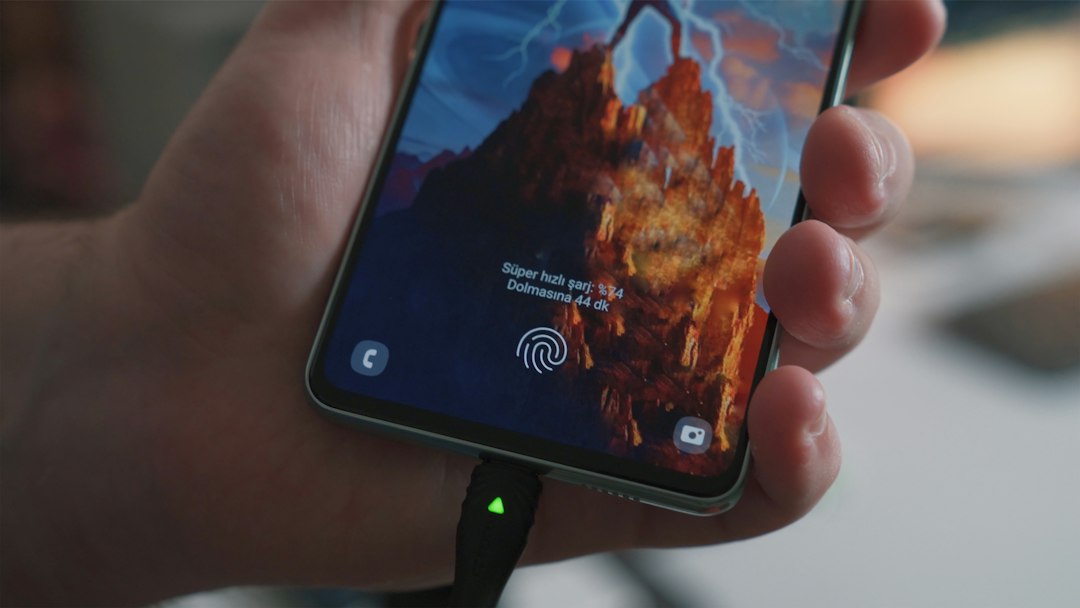
When you install an app to increase battery life of the phone, the main goal is to reduce unnecessary power consumption. These apps work by managing processes in the background, disabling resources that consume a lot of load and optimizing system settings.The result is a phone that stays on for much longer without the need to charge often.
How Battery Optimization Apps Work
Apps to increase battery life work through different optimization mechanisms.They analyze which processes are consuming more energy in real time, identify applications that work in the background unnecessarily and offer quick solutions to save charge.Some of these applications also monitor the temperature of the device, since a warmer phone consumes more battery.
Most of these apps use artificial intelligence technology to learn their usage habits. Over time, the app understands which apps you use frequently and which are completely ignored, automatically adjusting permissions and running programs in the background.
Another common feature in optimization apps is automatic management of screen brightness and refresh rate.The display is one of the largest battery consumers on any phone, and reducing brightness or adjusting the refresh frequency can make a significant difference in the overall device duration.Some apps offer customizable battery saving modes, allowing you to choose the level of restriction you want to apply.
Essential Checklist to Optimize Your Cell Phone Battery
Before installing any app to increase battery life, you should follow some fundamental practices. This checklist will help you ensure that you are making the most of the power-saving capabilities of your device, with or without third-party apps.
1. Disable Unnecessary Locations – Access your mobile phone’s location settings and disable GPS for apps that don’t need this functionality. The positioning system is one of the biggest battery consumers, especially when continuously active. Leave location enabled only for apps like maps and delivery apps that really need this information.
2. Reduce Sync Frequency – Check the automatic sync settings for emails, social networks and other cloud services. By reducing the frequency with which your phone checks for updates, you save a considerable amount of battery. Set up manual sync or increase the interval between automatic updates to values such as every 30 minutes or every hour.
3. Activate Dark Mode – If your phone has an OLED screen, turning on dark mode significantly reduces power consumption. OLED screens consume less battery when displaying dark colors because they turn off pixels, unlike LCD screens that consume the same amount of power regardless of color. Turn on dark mode in system settings and also in applications that support this functionality.
4. Close Applications in Background – Regularly close apps you are not currently using, as they continue to consume resources even when they are not visible on the screen. On iOS, swipe up from the bottom bar; on Android, go to the list of recent tasks and swipe apps to close them. This simple practice can significantly extend battery life throughout the day.
5. Disable Unnecessary Push Notifications – Access the notification settings of each app and disable notifications for apps that are not essential. Each notification you receive activates the screen and consumes battery even if you do not interact with it. Keep only notifications from critical apps such as messages, calls and productivity apps.
6. Reduce Screen Brightness Adjust the manual brightness of the screen to a comfortable level instead of leaving at most or depending on the automatic brightness. The automatic brightness also consumes energy constantly processing the ambient brightness. Set the brightness at a level between 30% and 50%, which is suitable for most environments.
7. Disable Bluetooth, WiFi and Mobile Data When Not Use leaving these connections active even when you are not using them consumes battery continuously. Erase them when you are without internet or in environments where you do not need to be connected. When using these services, activate them only when necessary and deactivate as soon as you are finished.
8. Update Your Apps Regularly – App developers constantly release updates that optimize battery consumption and fix memory leak issues. Keep all your apps up to date through the app store to ensure you are using the most efficient versions.
9. Enable Integrated Battery Saving Mode both iOS and Android have native battery saving modes that you should enable when the charge level is below 20%. iOS has “Low Power Mode” mode and Android offers “Battery Saver”; both significantly reduce consumption by limiting processing and disabling non-essential functionality.
10. Check Apps That Consume More Battery – Access your phone’s battery settings and examine the list of applications that consume the most power. If you find an unknown or unnecessary app consuming a lot of battery, consider uninstalling it or investigating its permissions.
11. Turn off Notification Vibration – The vibration of the phone consumes more battery than the sound of a notification, because the vibration motor requires more power. Disable vibration in notifications, ringtones and touch feedback in applications to save significant battery, especially if you receive many notifications during the day.
12. Clean Application Cache Periodically – Access the storage settings and clear the cache of the applications you use frequently. The cache accumulates temporary data that can slow down apps and consume more battery while running. You can do this manually app by app or use the general cache cleaning option offered by system settings.
The Best Apps to Extend Battery Life
There are several apps available in official third-party stores that offer advanced battery optimization features. These apps go beyond your phone’s native settings and provide detailed analysis of which processes are consuming the most energy.Knowing the options available helps you choose the solution that best suits your specific needs.
The AccuBattery app offers in-depth analysis of your mobile phone’s power consumption in real time. It shows which apps are draining the most battery, how much time you still have available and offers personalized recommendations to save energy. The interface is intuitive and features detailed graphics that make it easy to understand battery behavior over the days.
Another popular app is Greenify, which stands out for managing background apps intelligently. It identifies apps that shouldn’t be consuming resources when you’re not using them and puts them into automatic hibernation. Greenify doesn’t force processes to shut down, but rather elegantly manages which apps are allowed to work in the background.
Avast Battery Savers is an app that offers customizable battery saving modes with different levels of restriction. You can enable aggressive modes when the battery is low or choose lighter modes for daily use. The app also provides notifications about battery-intensive apps and offers automatic cache cleaning.
Another viable option is DU Battery Saver, which offers automatic battery saving modes based on your current charge level.It monitors the temperature of the mobile phone, manages applications in the background and offers a detailed report on which processes are consuming more power. The application also has cache file cleaning functions to free up space.
Differences Between Genuine Apps and Questionable Apps
Not every app available in official stores is safe or effective, and you need to learn how to differentiate genuine apps from questionable solutions.Some developers create apps that promise miracles but actually consume more resources than those who claim to optimize. Understanding these differences protects your phone and your privacy.
Genuine apps for increased battery life often come from well-known developers with an established history.Check the number of reviews, average rating, and user reviews before installing any app.Legitimate apps have ratings above 4 stars with thousands of reviews, while questionable apps often have few suspicious reviews or comments.
Be on the lookout for apps that ask for excessive permissions that make no sense for your proposed role. A battery optimization app should not ask for permission to access your contacts, messages, or browsing history. These unnecessary permissions are warning signs that the app may be collecting your personal data.
Some apps called “battery savers” actually just close and limit the execution of other apps aggressively, degrading the functionality of your phone. The best apps work together with the native system settings, optimizing without sacrificing usability. If you notice that after installing an app your phone has become slower or less responsive, consider uninstalling it immediately.
Comparison between App Usage and Native Optimization Settings
A common question is whether you really need to install a third-party app or whether the native battery saving settings are enough. The answer depends on how much control and detailed analysis you want, but the truth is that both approaches have their merits. Understanding the differences helps you make the best decision for your situation.
Modern operating systems like iOS and Android include very effective battery saving native features.The Low Power mode of iOS reduces processor performance, disables some graphics and limits background processing, saving battery significantly. Android offers Battery Saver that works similarly, with the advantage of allowing more customization of the restriction level.
The advantage of third-party apps is that they offer much more detailed and granular analysis of battery consumption. While native settings show overall consumption, apps like AccuBattery show you exactly which specific app is draining power in real time.
Third-party apps also offer additional functionality that is not available natively, such as automatic app hibernation, scheduled cache cleaning, and customizable saving modes.If you just want to extend the battery life of your phone, the native settings are sufficient, but if you want maximum optimization and deep analytics, a third-party app is a valuable add-on.
Advanced Tips to Maximize Battery Duration
In addition to basic practices and application usage, there are advanced techniques you can implement to further extend your phone’s battery life. These strategies combine behavior changes with technical optimizations for superior results.Applying these tips together with a third-party app delivers the best possible performance.
An advanced technique is to disable GPS location when you are not actively browsing and only enable location over WiFi and mobile data. Network location is much less accurate but consumes significantly less battery than GPS. For applications such as social networks that do not need accurate location, this setting dramatically reduces power consumption without affecting usability.
Another strategy is to create different usage profiles depending on your context. If you are going to be in an 8-hour meeting without access to charging, activate an aggressive battery saving profile where almost all secondary functionality is disabled. For normal use at home, use a less restrictive profile that allows you to better take advantage of all the features of the phone.
Consider also using two phones for different purposes if you rely heavily on your device. A smartphone configured only for essential communication and another for social networks and general use allows you to distribute battery consumption.For those who travel frequently or work in the field, this approach ensures that you always have a device with battery available.
Monitor the overall health of your mobile phone battery, especially if the device is over 2 years old. Degraded batteries lose natural capacity and discharge much faster, making it impossible to extend the duration significantly with software only. If you notice that the battery is with capacity well below 80%, consider replacing your mobile phone battery in an authorized technical service.
FAQ – Frequently Asked Questions About Battery Duration Apps
Do battery saving apps really work? Yes, legitimate third-party apps work and deliver tangible results, especially when providing detailed power consumption analysis. However, battery life improvements depend on how poorly optimized your phone was initially.
What is the difference between app hibernation and simply closing apps? App hibernation prevents the app from working in the background and receiving data, but keeps it installed for quick access when you need it. Closing an app only stops its current run, but it will continue to work in the background if it has these permissions.
Is installing many battery optimization apps better? Installing multiple battery-saving apps usually makes the situation worse, as each one consumes its own resources and may conflict with the other. Choose one reliable app and uninstall the others for better performance.
Do battery apps affect the performance of my phone? Legitimate battery optimization applications have minimal performance impact when configured correctly. However, very aggressive saving modes can reduce processing speed. Adjust the restriction level to find the optimal balance between battery life and performance.
Is it safe to use third-party apps to optimize battery life? As long as you only install apps from well-known developers with good ratings and proper permissions, it is completely safe. Always check the requested permissions and read user comments before installing any app to ensure security.
How often should I clear my app cache? Clearing cache every week or two weeks is suitable for most users. If you use very heavy applications or have little storage space, consider clearing cache weekly. The cache always rebuilds automatically, so regularly cleaning does not affect functionality.
Does dark mode work on LCD screens or only on OLED? Dark mode offers benefits primarily on OLED displays, which turn off black pixels and save energy proportionally.On LCD screens, dark mode offers visual benefits and reduces eye strain, but battery consumption remains similar regardless of the colors displayed.
Which app is best for increasing battery life? There is no universal “best” as the choice depends on your specific needs. AccuBattery excels in detailed analytics, Greenify in background management, and Avast in customizable modes.Test different apps and see which one delivers the results you’re looking for.
Conclusion and Next Steps
Increasing the battery life of your mobile phone is entirely possible through a combination of proper practices and third-party tools. Starting with native settings and then adding a trusted third-party app gives you the best result and full control over energy consumption.The checklist presented earlier provides a practical guide that you can follow immediately to see tangible improvements.
To get started today, follow the checklist steps in the order presented, prioritizing the changes that make the biggest difference like brightness adjustment and GPS management. After a few days with these practices, evaluate whether the battery life has improved enough to meet your needs. If necessary, choose one of the mentioned apps based on your analysis and control preferences. Remember that the optimization process is continuous, and small adjustments over time result in significant improvements in battery life.